
This article will show you how to set up property change notifications to send emails through your shared Office 365 account. This could be useful if you want generic emails that are triggered by an action you do in Clik. We call these email notifications ‘property change notifications’.
First, you must be signed in to your Office 365 shared account. Please go here to learn how to sign in to your Office 365 shared account.
Go to Settings > Settings > Communication > Office 365.
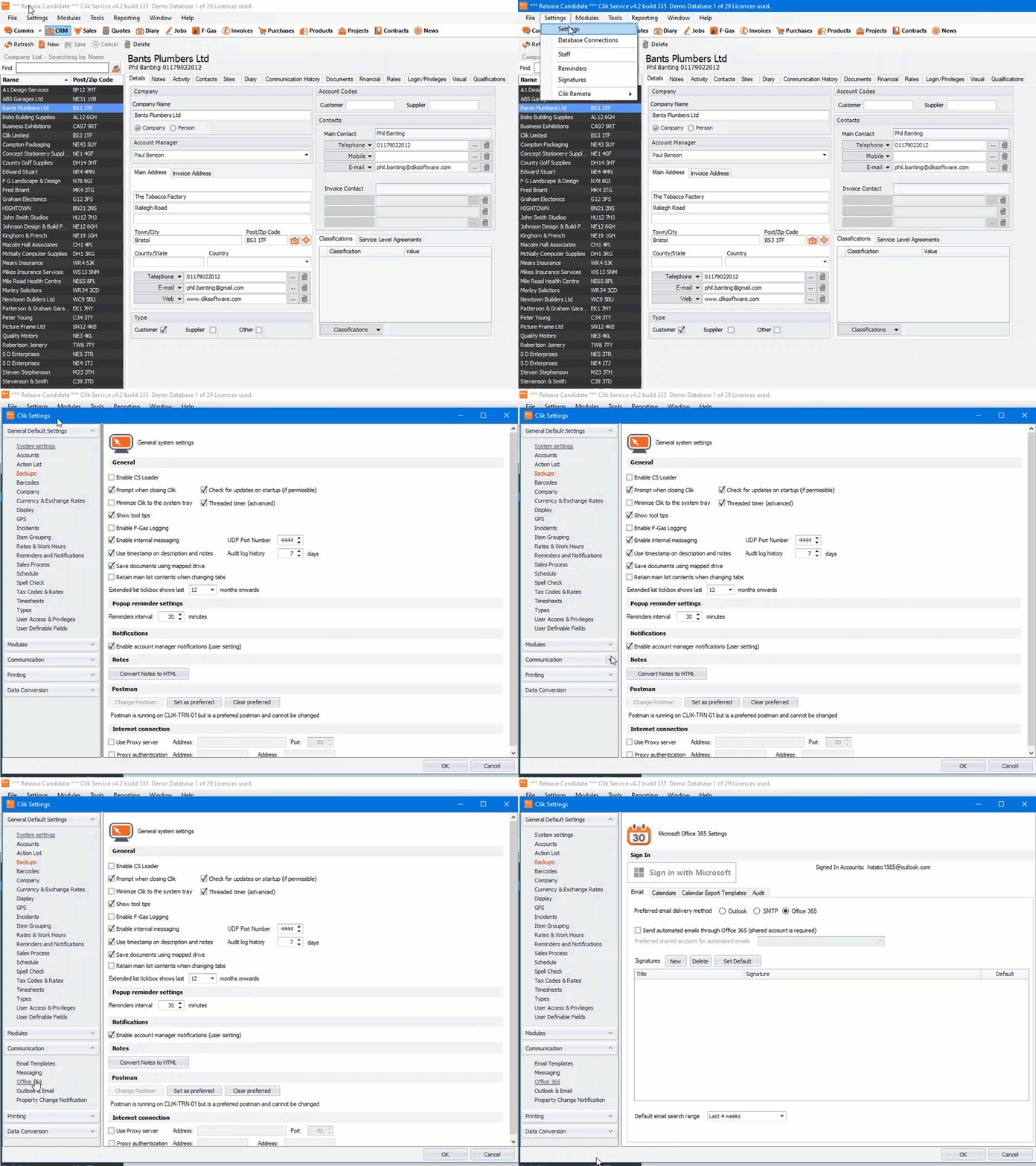
Now tick the ‘Send automated emails through Office 365 (Shared account is required)’ box.

You can now decide, if you have multiple shared accounts, which one you'd prefer to send automated emails by selecting in the ‘Preferred shared account for automated emails’ box.

That’s it, your property change notifications will now send out through this email account.
This was added in update v4.335. Make sure to update your software to get all the latest updates and improvements.
Comments
0 comments
Please sign in to leave a comment.