
This article will show you how to do reports in the new f-gas module. We currently have three reports - cylinder list, f-gas logs, and system list.
First, go to Reporting > Report Wizard.
Find the F-gas category and select the report you require. For this article, we chose f-gas logs.

Click 'Next' to continue.
The following screen will allow you to filter the data you want to see. So in this example, I only want to see one engineer's f-gas log entries. You can tick 'Include all results' if you want to see every f-gas log in Clik.
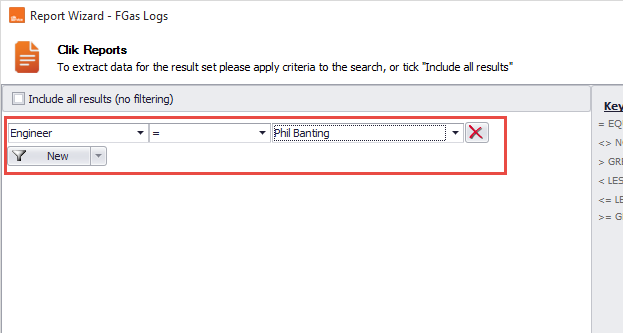
Once finished with filtering click 'Next'.
You can select the properties you wish to see or not see in the report. Do this by clicking on the arrows in the middle to select or deselect the properties.
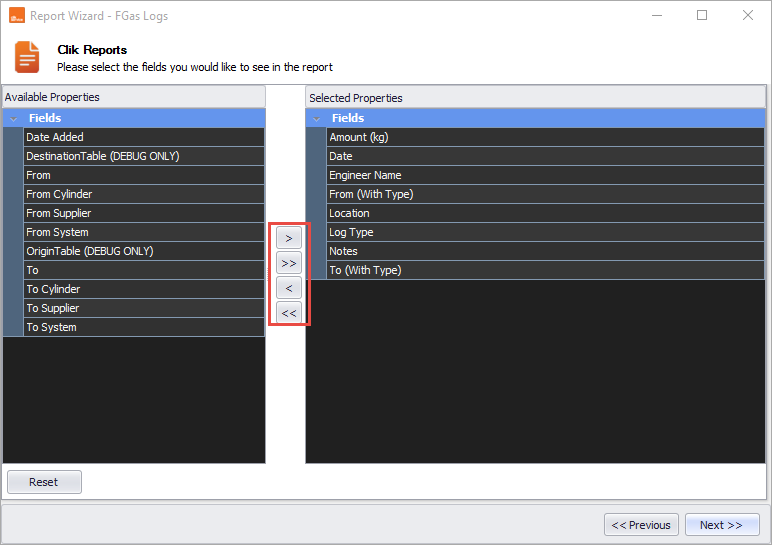
Click 'Next' to continue and 'Finish' to generate the report.
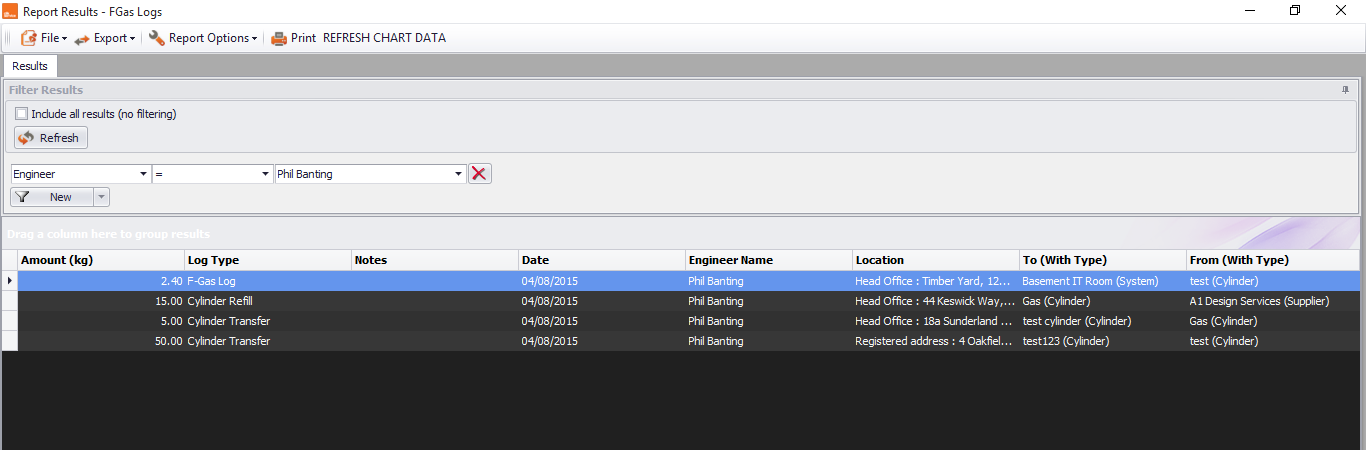
Once you're happy with the report, click File > Save report as and fill in a name for the report, then select the category and click 'OK'.
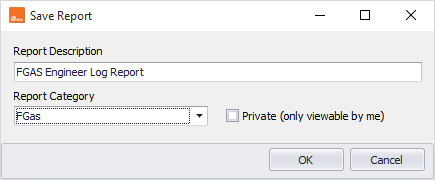
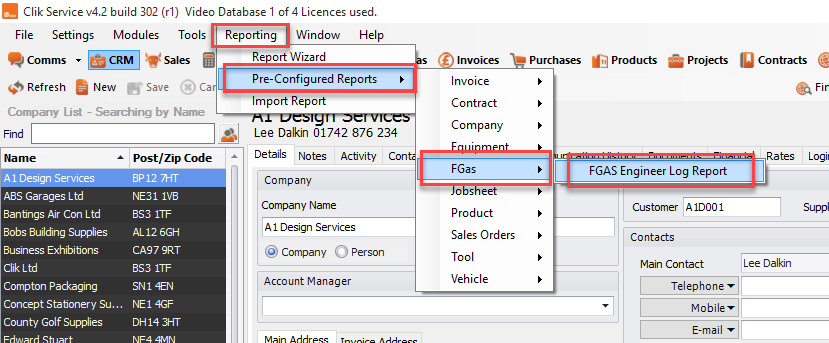
This will save the report and you can get to it by going to Reporting > Pre-configured reports > FGas > F-gas Engineer Log Report.
That’s it. You've created a report for f-gas.
Comments
0 comments
Article is closed for comments.