
After uploading your certs back to the office program, you can view and create copies of these certs in Field Mode.
This article will show you how to view your uploaded certs and create copies of the certs to reuse on Field Mode.
In the ‘Certificates’ tab, click on the ‘Local Certs’ drop-down to select ‘Uploaded Certs’. This will then show all the certs you have previously uploaded from Field Mode.

Right-click on the cert you need to copy and select ‘Create Copy From Cert’.
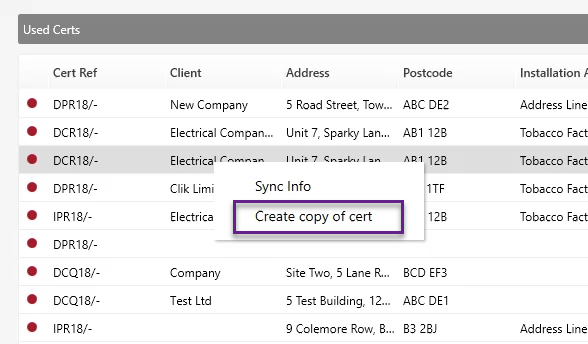
You will then be able to find this new cert under your ‘Local Certs’ list.
This feature was included in update v1.0.46.2, make sure your software is up to date to get the latest features and improvements. To update Field Mode, go to Help > Check For Updates.
This feature is also available on the Clik Cert Electrical apps. See more about the steps to create copies of uploaded certs here.
Published: February 2020
Comments
0 comments
Please sign in to leave a comment.