
This article will help you to install Field Mode for the NICEIC Cert Software. You will first need to make sure you have installed the main desktop software before completing the Field Mode installation.
You should receive an email with all the details you need to install the software. If you have not received this email or you require the new installers, please contact our support team.
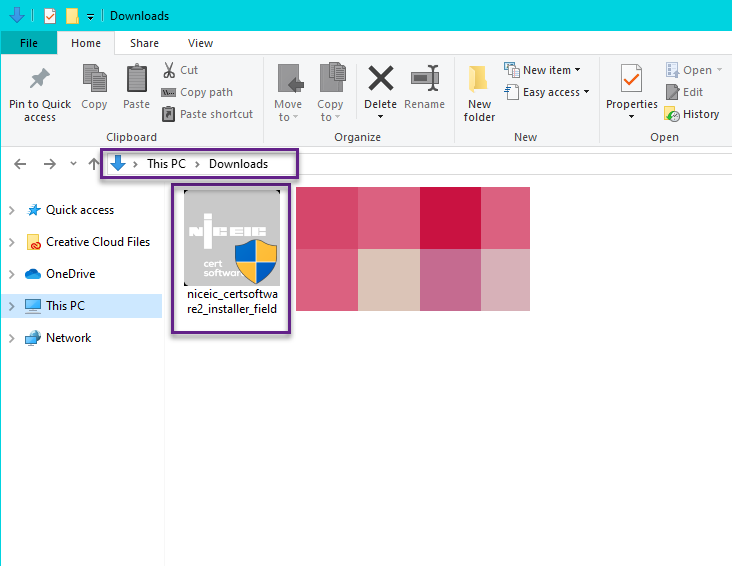
The first thing to do is click the download installer link, once downloaded you can run the installer by double-clicking on the NICEIC Icon in your “Downloads” folder.
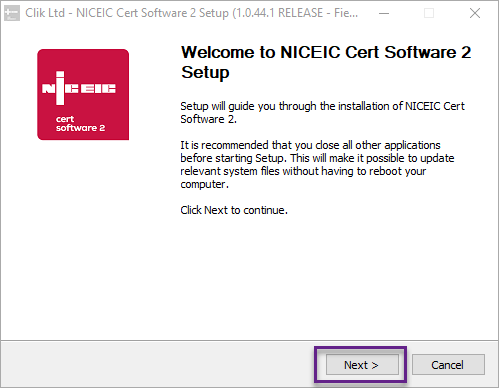
You will get a splash screen as below. Click ‘Next’.
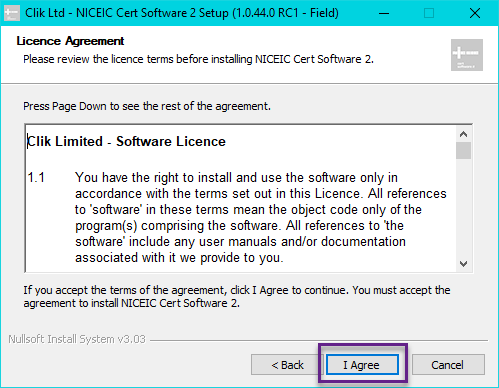
You will be prompted to agree to our terms and conditions, please read and click ‘I Agree’ if you’re happy to continue.
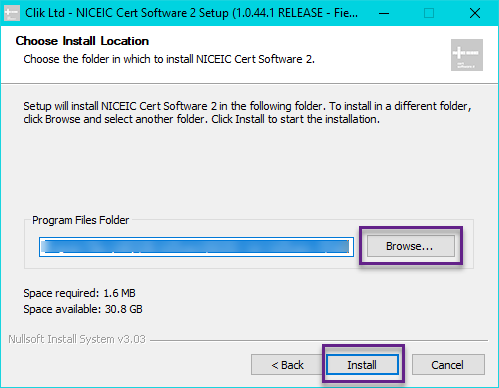
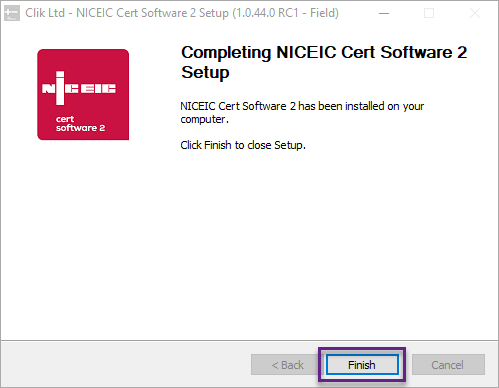
You will then get the opportunity to choose the destination folder for the software on the below screen. Once the correct destination has been selected, click ‘Install’. The install will complete.
Click ‘Finish’ at the end.
You can then open the software using the desktop icon.
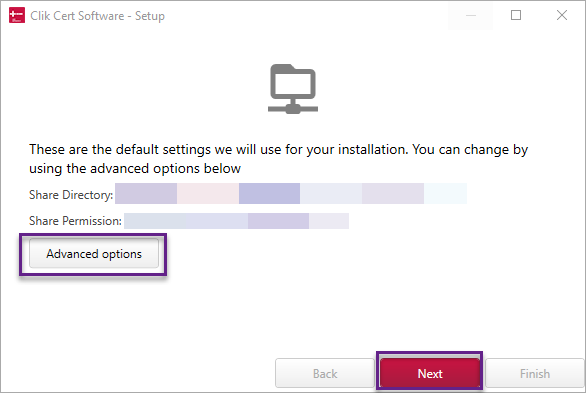
You will then be greeted by the setup screen.
Here, we have selected the most common options by default but if you wish to change or view them, you can click ‘Advanced options’ to explore other settings for the installation.
Click ‘Next’ when you are happy with the selection.
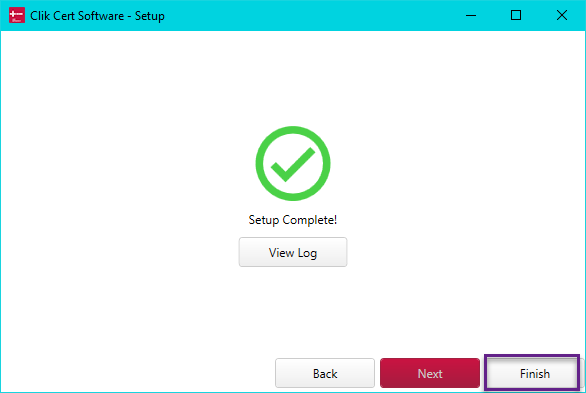
The setup will then be completed. To view the log of changes made, click on ‘View Log’. Select ‘Next’.
You will then need to enter your pin and log on.
See the links below for further help with Field Mode:
Setting up Field Mode users
Sending certs & templates to field users
This installation process was emended in update v1.0.44, if the setup appears differently for you, please contact our support team to make sure you have the latest update.
Published: November 2019
Comments
0 comments
Please sign in to leave a comment.