
This article tells you how you can log into Field Mode.
Field Mode allows you to use the software offline and enables you to sync certificates back to your central NICEIC database and import certificates that the office may send you. Field Mode works in the same way as the Clik Cert Electrical App however with the usability of filling in certificates that you expect from the desktop software.
You must first make sure you have Field Mode and the main Server software installed.
You can now exit the main software and open the Field Mode application. Please make sure at this point you have an internet connection.
You will be prompted to enter a pin. The pin number can be found in the main office software, if you’re unsure where to find the pin, please refer to the guide here.

Note: the pin is only required when you first log into Field Mode.
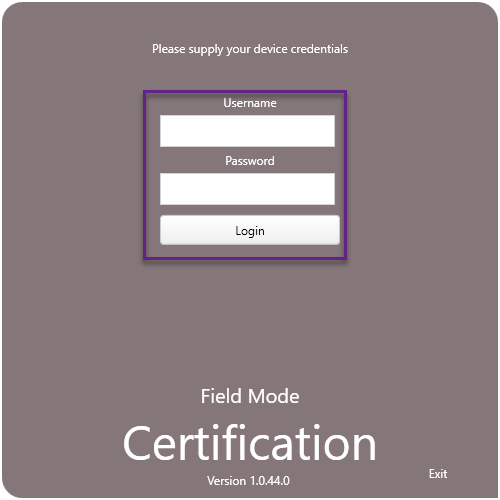
Enter your username and password set in the main desktop software and click ‘Login.’ The password would be set up when creating the field engineer staff member. The first name and surname of the user will be the username when logging into Field Mode.
If you have not yet set up Field Mode users, please refer to this support article.
The software will then check for any certificate updates to complete the setup.

When the setup is complete, you will now be in Field Mode.
You can then download certs, create new certs and send them back to the main software for completion.
Please note: this guide features screenshots taken from Field Mode update v1.0.44, so images/icons may differ in earlier versions.
Published: July 2019
Last Updated: April 2020
Comments
0 comments
Article is closed for comments.