
This article will show you how you change the tax code in an invoice to the correct tax code for domestic reverse charge.
When you’re in the invoice, open up the times or materials that come under the domestic reverse charge rules.
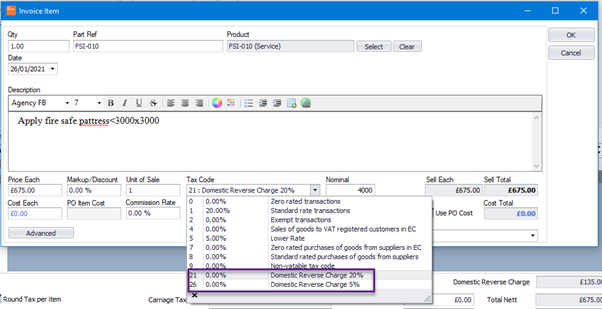
You can then select ‘Tax Code’ and you will see Tax Code 21 for “domestic reverse charge 20%” or 26 for “domestic reverse charge 5%”.
Once you have selected the domestic reverse charge amount, it will be shown and no VAT will be on the item.
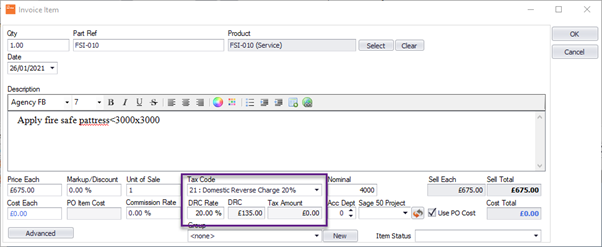
You can do this for all items that require the domestic reverse charge and then post to your accounting package.
This was added in update v4.335. Make sure to update your software to get all the latest updates and improvements.
Comments
0 comments
Please sign in to leave a comment.