
Although primarily designed to be raised from an existing purchase order you can raise a purchase invoice as a standalone item.
To do this, click on the 'Purchases module' button then the 'Purchase invoices/credits' tab.
Click on the 'New' button and select 'Purchase invoice' from the drop-down menu to create a blank purchase invoice.
If you have raised a purchase invoice from a purchase order all the supplier details will already be filled in.
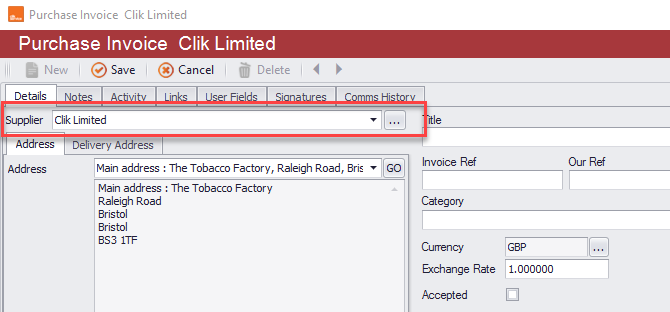
If you are raising a blank invoice you will need to select the supplier by clicking on the supplier drop down-field on the right side of the window. Alternatively, select the ellipses button and select the 'Supplier' that way.
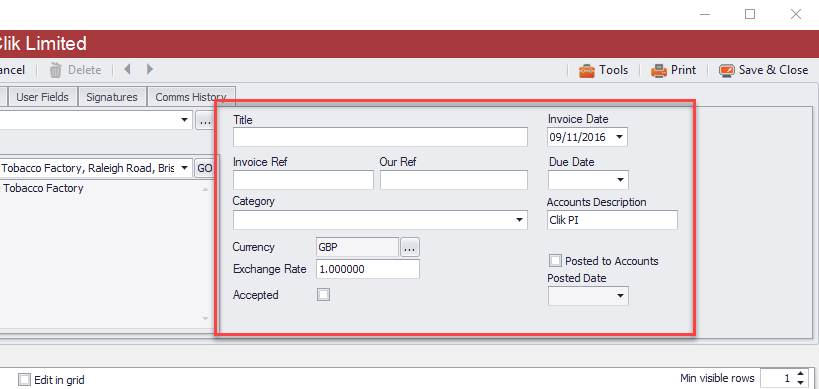
You'll need to add the invoice details on the right-hand side of the window, including the invoice date, reference, and category as required.
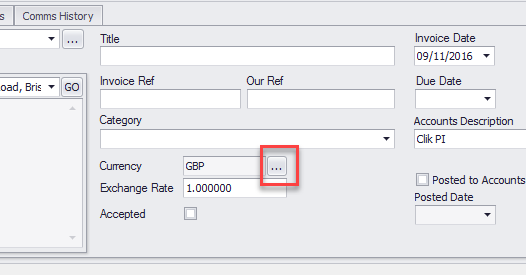
If your supplier has an alternative currency you can change it by clicking on the '…' button to the right of the currency field. All CRM entries can have a default currency value, once changed on the Financial tab of the CRM entry, all items raised thereafter will use that currency by default.
Adding Items
You can add items and relevant financial information to the purchase invoice in the bottom half of the purchase invoice window.
Click on the 'PI items' tab then the arrow next to the 'Details' button and select which type of item you would like to add to your invoice.
Create a new item manually to insert into the purchase order by selecting 'Add'. Or select 'Add from products' or 'Add to products' to do just that.
If you select 'Add from products' then the products list will load and you can select multiple items in one go. As all the items should already have correct product details and pricing in them you only need to alter the quantity required. When adding from products you can over type any of the description and price values, but this will not change them in the products database.
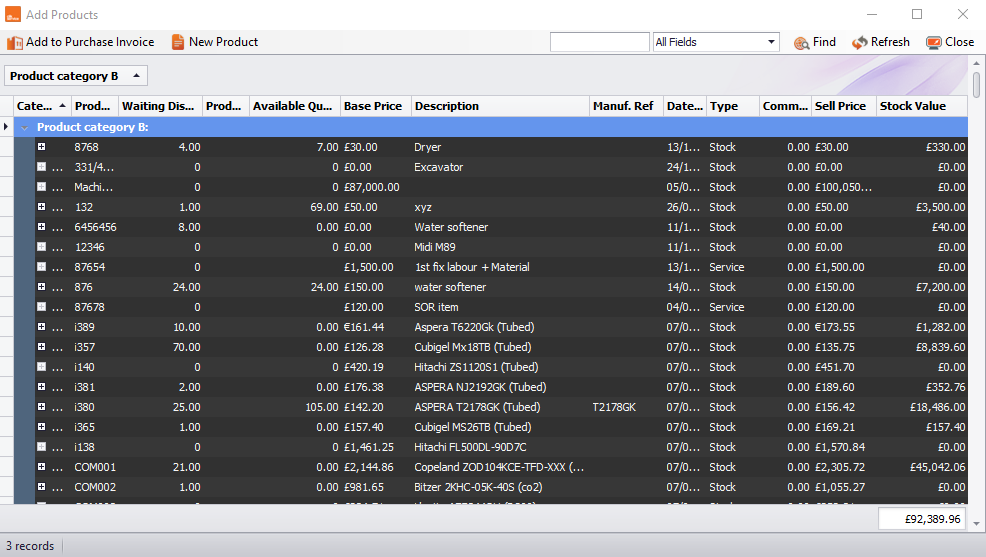
Double-click on any product item to edit it and add it to your invoice.
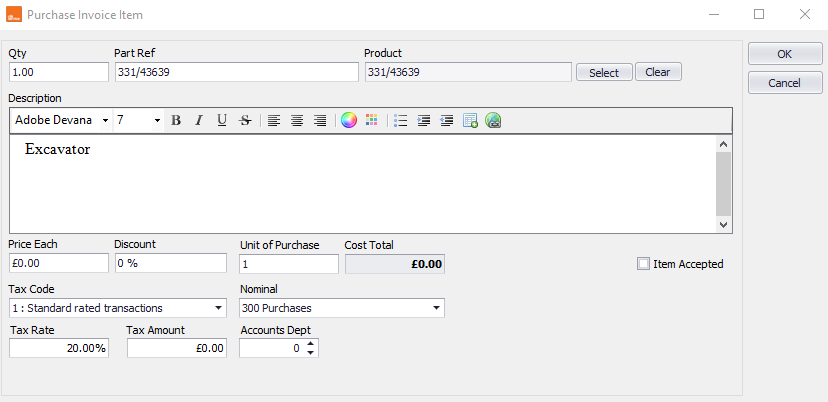
When you have filled out all the relevant details click OK for the item to be added to the purchase invoice.
Purchase Order Link
If the purchase invoice has been raised from a purchase order, the relevant details will be displayed on the 'Purchase orders' tab, which you can find under the 'Activity' tab.
If you double-click on the PO details it will load up the purchase order.
Once you're happy with your purchase order, click 'Save & close'.
Comments
0 comments
Article is closed for comments.