
You will need to perform a sync to send out information to Field Mode or Clik Cert Electrical apps. This will need to be carried out to include any changes to staff users, certs, addresses and templates.
To do this, you will first need to make sure your user has the correct privileges set up. Follow this guide and ensure that the 'Can Sync Certificates' privilege is allowed.
Run A Sync
In the office software, you can run a sync from the certificate screen.
Click on the ‘Sync’ button in the top right of the screen.

The progress of the sync can be seen in the bottom bar.

Once completed, you will then need to perform a sync in Field Mode or Clik Cert Electrical. See the following support articles for more information on syncing:
Downloading Certs in Clik Cert Electrical
Downloading Certs in Field Mode
Schedule A Sync
If you want a sync to automatically perform at certain intervals during the day, you can set a sync schedule.
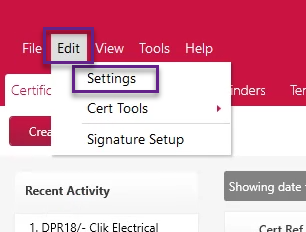
Go to Edit > Settings.
Navigate to the ‘Field Users’ tab. Here you can tick the ‘Enable Schedule Sync’ box and adjust the schedule settings to suit your business hours.
This will require the software to be open and a user will need to be logged on to the Server (or standalone machine), so you will need to alter the ‘between’ times to coincide with this.
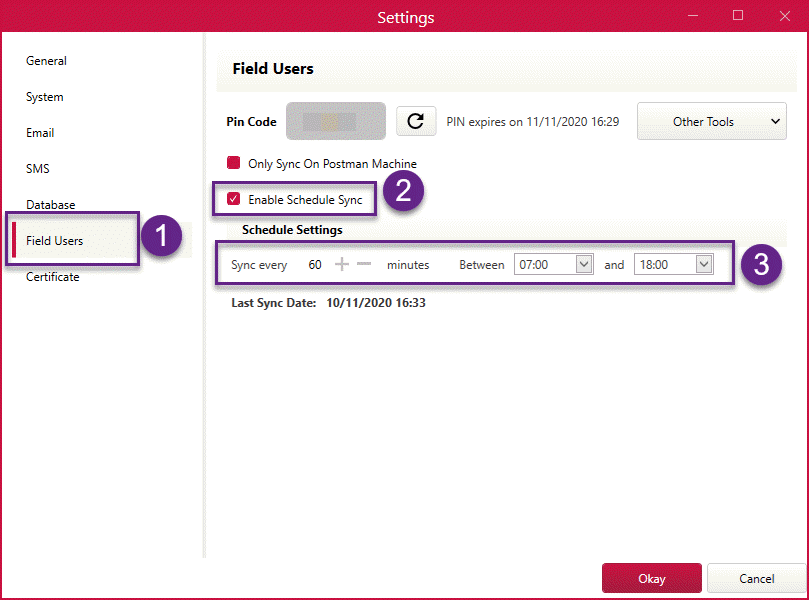
Click ‘Okay’ when completed to close this window.
The settings screen was updated in v.1.0.50.
Published: April 2020
Updated: November 2020
Comments
0 comments
Please sign in to leave a comment.