
The spellcheck tool will help you keep your certs free from errors.
Please note, the spellcheck tool uses your Windows dictionary. If you do notice some issues with spelling suggestions, you will need to adjust the preferred languages in your Windows Settings.
There are a couple of ways you can use spellcheck when completing your certs.
A red line will indicate a spelling error, you can right-click directly on the word to bring up some options.
Select the correct spelling suggestion to change it.
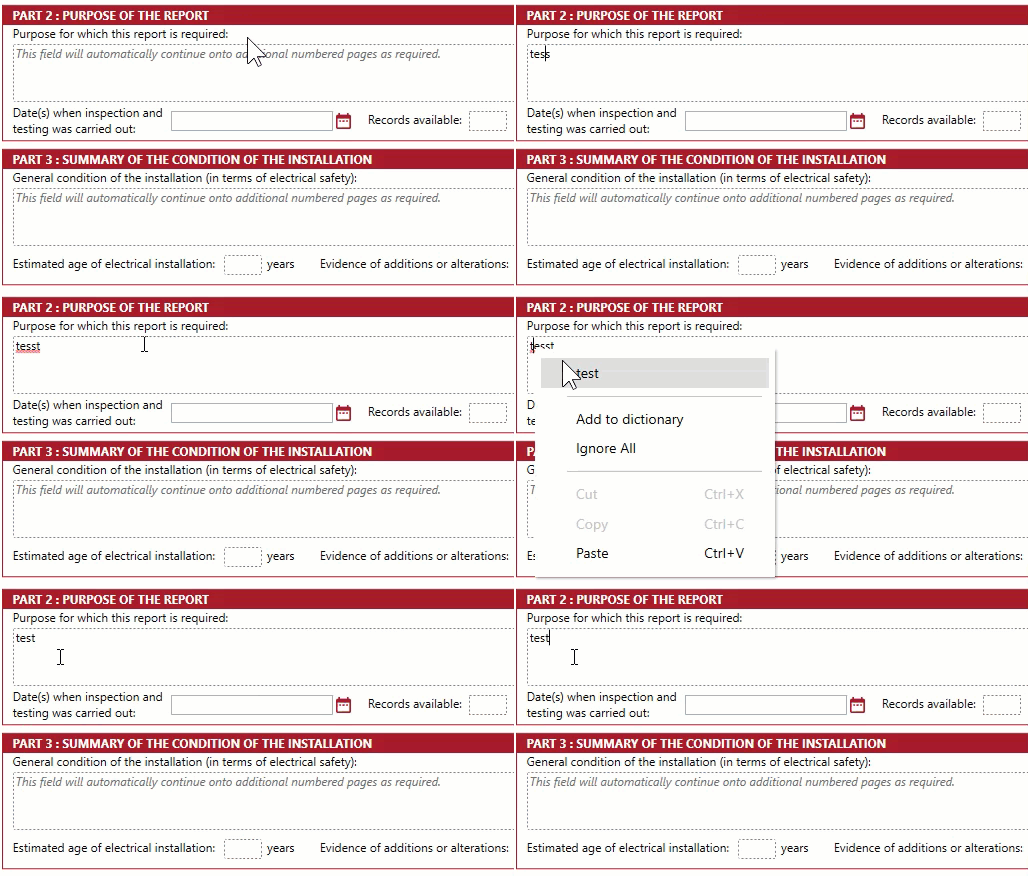
You can also add the word to your dictionary for the future or ignore the error.
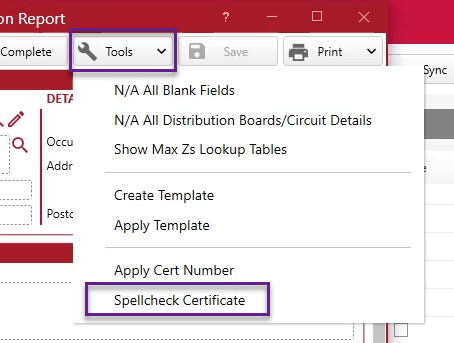
To check the entire cert for spelling mistakes, go to Tools > Spellcheck Certificate.
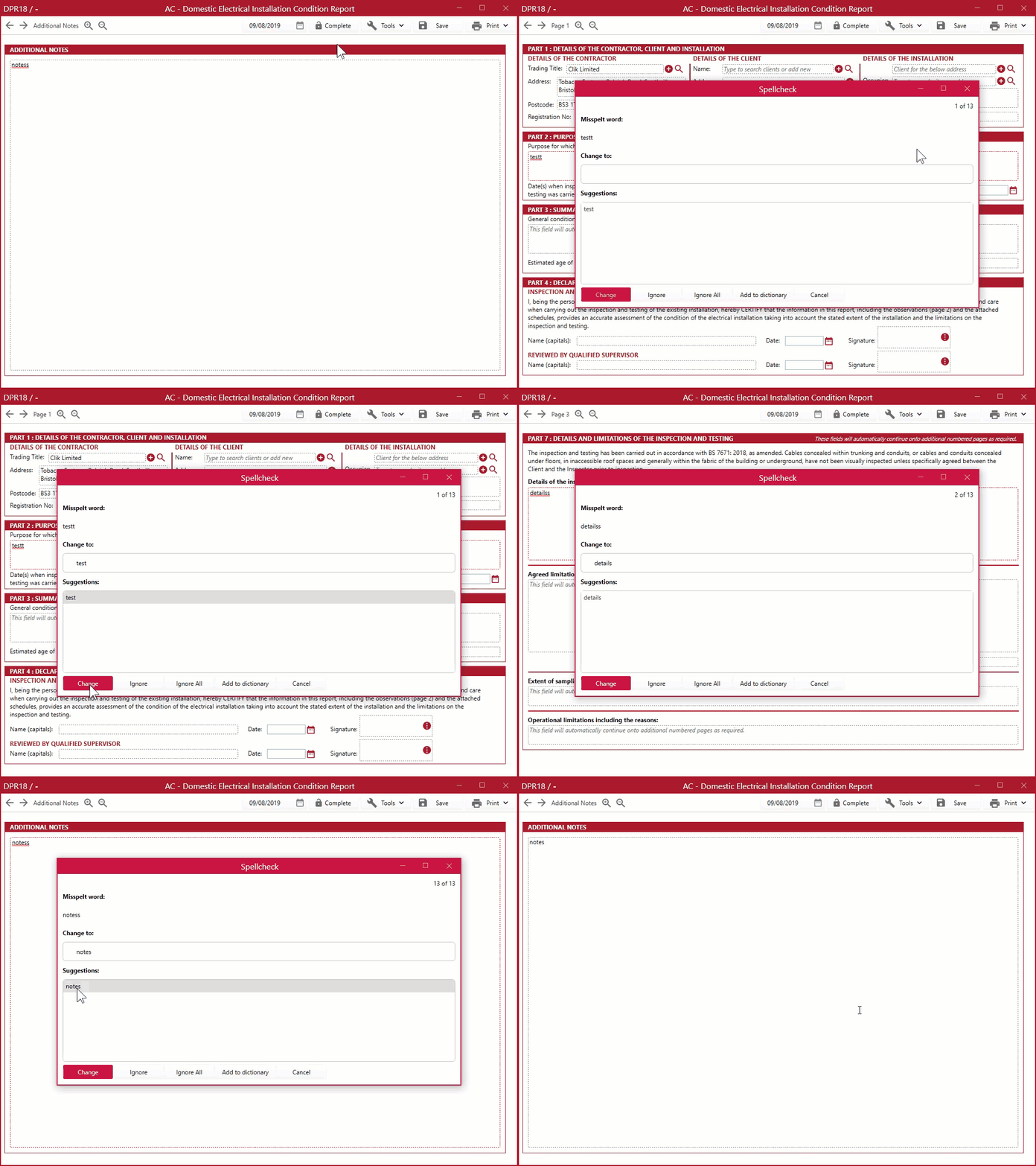
This will then bring up a new window, indicating the misspelt word/s. You will need to go through each flagged error and either replace the word with one of the suggestions or type in your alternative into the ‘Change to’ box. Click ‘Change’ when you are happy with the new selection.
You will also have the option to ignore or add the original word to the dictionary.
When all errors have been corrected, a small window will pop up indicating that the spellcheck is complete. Click ‘Ok’.
The spellcheck feature is included in update v1.0.43.1, see the version history for the full list of improvements and bug fixes.
Published: August 2019
Last Updated: April 2020
Comments
0 comments
Article is closed for comments.