
The report wizard in Clik Service allows you to create and save useful reports. Here's how to make the most of it:
To access the report wizard click on 'Reporting' at the top of the program, then Report Wizard'.
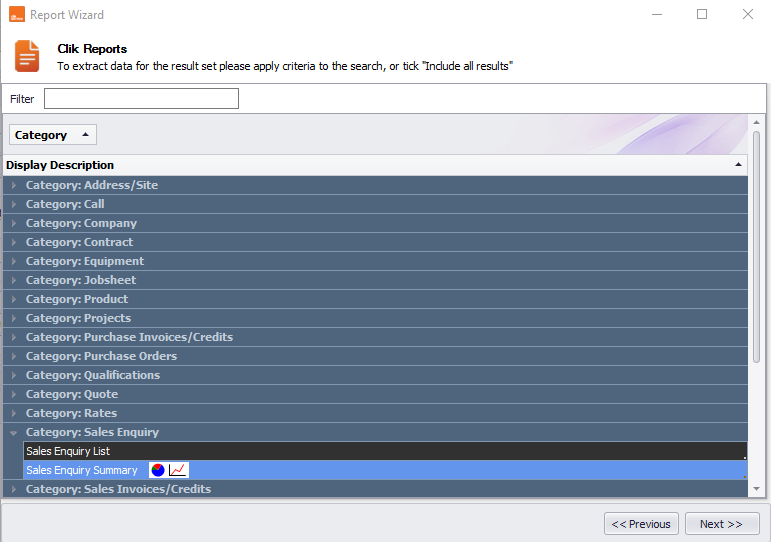
The reporting wizard will ask you which section of the program you wish to report on – these are broken down into each of the core modules within Clik Service. You can either scroll through the available options or use the filter search bar to look up a specific module.
Highlight the type of report you want to create and click 'Next'.
The next screen allows you to filter the results – for example, you can choose a certain date range, customer or engineer.
To create more than one filter click on the 'New' button.
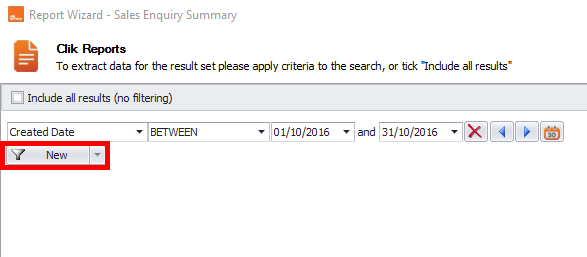
When you are happy with your filters click 'Next'.
The next screen allows you to choose the detail of your report.
Items on the right-hand window are included in the report. Use the arrow buttons to select/deselect items.
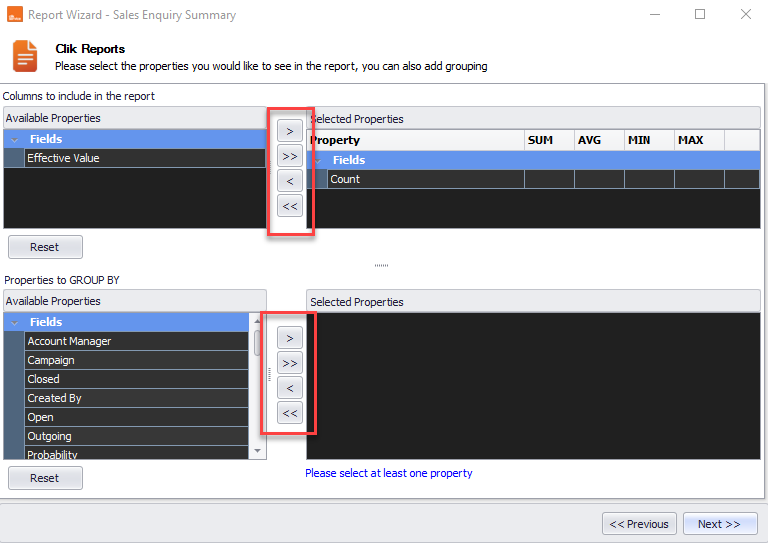
To generate the report click Next > Finish.
The report can be printed or exported to Excel or HTML using the 'Print' and 'Export' buttons.
If you click File > Save the report as.., you can give the report a title and it will appear in the 'Pre-configured Reports' list found under the 'Reporting' menu at the top of the program.
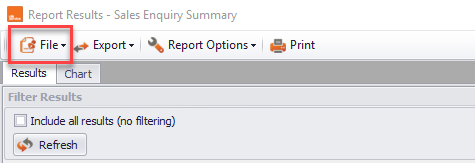
If you export a report it can be saved and imported into another Clik database – use the 'Import report' option under the 'Reporting' menu. This is useful if you have more than one database and want to use the report on each.
Comments
0 comments
Article is closed for comments.