
To create a new certificate with your Clik Gas for Android App, open the application and swipe the screen one page to the right.
Or select 'Add new' from the tab list at the top, then tap the type of certificate you'd like to create, which will open a new window.

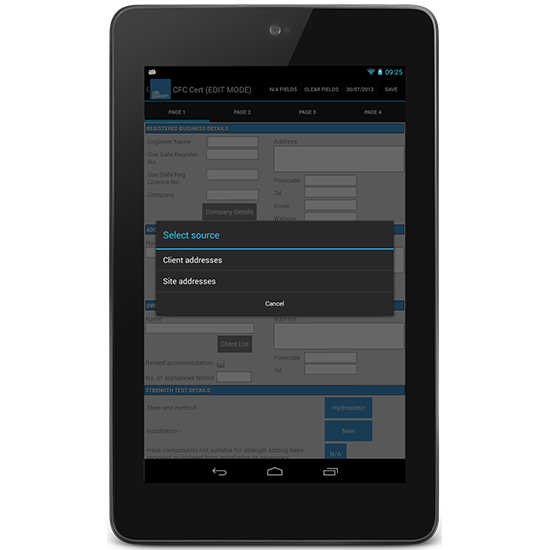
Enter the details required to complete the certificate. The buttons on the form allow the user to select addresses from their library which has been synced from the desktop software.
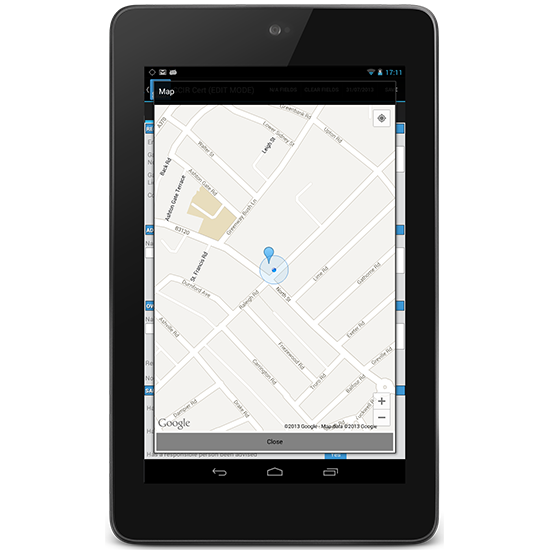
The 'Map' button will open a pop-up window containing a Google map which navigates to the address held in the address box to the right of the Map button (If no address is provided or available, the Google map will default to Central London).
To go on to the next page by swiping the screen to the right, or, select Page 2 from the tab list at the top of the screen.
To fill in details about appliances, hit 'Add from appliance library' or, click 'New appliance'. This will bring up a form that allows you to fill in details about an appliance that's being inspected.
Once this is complete click 'Done' and this will create a new appliance in the list.
If you need to delete anything at any time click the item in the list and hit the 'Delete' button, or, hold your finger on an item to be able to edit it.
When finishing your certificate, click the box with signature in it. This will open a pop-up a box that allows you to draw your signature.
Enter your name in either of the name fields and click the 'Date' box to select a date from the date-picker box.
To finish and save your certificate, select the 'Save' button from the top right corner of the screen, then hit the 'Back' button at the bottom of the tablet and you will leave your finished certificate.
Comments
0 comments
Article is closed for comments.