
You can apply signatures to your certificates, to keep them looking professional and slick.
You’ll need to have the signature saved as a jpeg or bitmap image file before setting it up Clik Gas.
Find the electronic signature settings by clicking 'Edit' in the top menu of the program; then select electronic signatures from the drop down menu.
You’ll be prompted to insert the master password. This is set in the default settings.
If it hasn’t already been set go to Edit > Defaults settings to set a password.

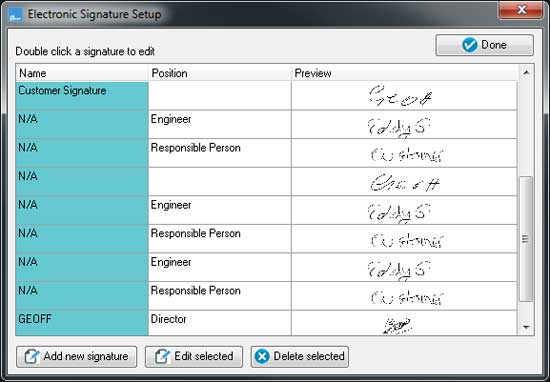
Once you have inserted the master password the electronic signature setup will load, showing any previously configured signatures.
You can edit & delete existing signatures from here.
To create a new signature click on 'Add new signature'.
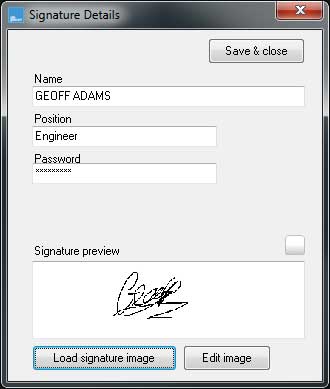
You will need to fill in the name, position and password for the signatory. This password will be required each time you wish to apply the signature to a certificate.
Click on 'Load signature image' and then browse to find the file.
You can adjust the image by clicking on 'Edit image'. You can crop and darken the image using the edit tools.
Once you are happy with the signature, click on 'Save and close' and the signature will be ready for use on any certificate.
Comments
0 comments
Article is closed for comments.