
By creating a consignment note, you can log cylinders being returned to a supplier or waste recycler and the cylinder will be removed from your inventory.
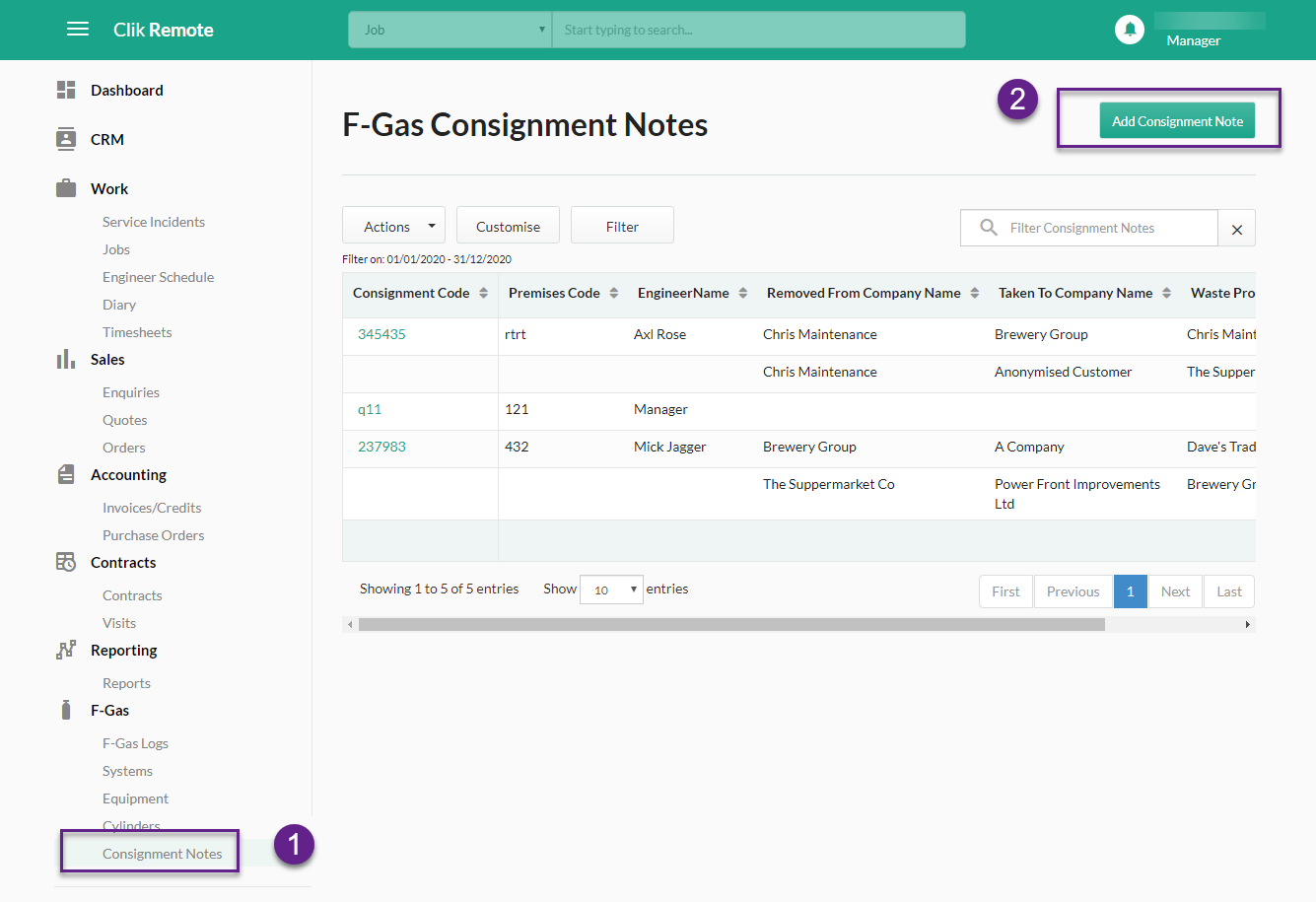
To create a consignment note, click on the ‘Consignment Note’ tab on the left-hand menu and then select ‘Add Consignment Note’.
You will then be prompted to add the note details – these replicate the waste disposal note you receive from your supplier/recycler when processing the waste refrigerant or cylinder.
The companies and locations on the right-hand side must be already entered in the CRM of Clik to be selected from the search bar.
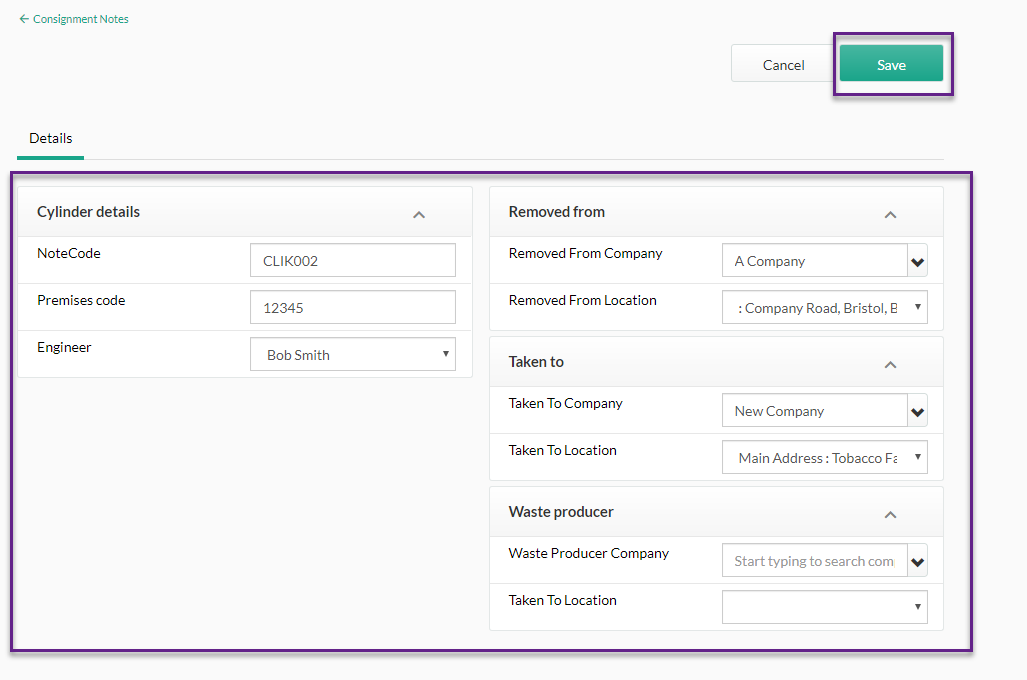
Once these details are filled in, click ‘Save’ in the top right and you can now add cylinders and documents, such as the original waste disposal note.
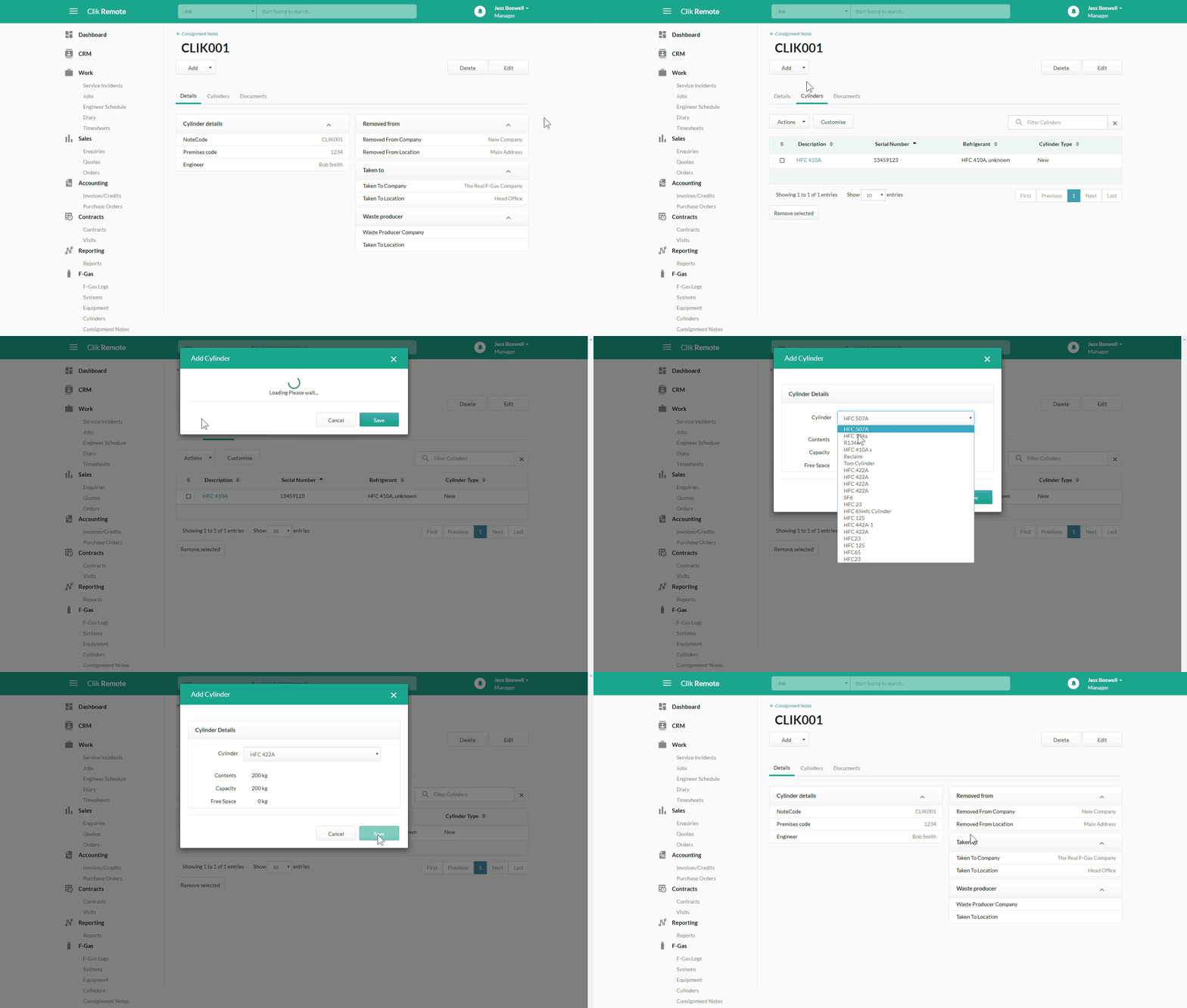
To add cylinders, click on the ‘Cylinders’ tab within the consignment note select the cylinder from the ‘Add’ menu at the top.
You will need to ensure your users have the correct privileges set in Clik Service in order to view and create consignment notes. You can find the full steps on how to set up user privileges here.
Published: January 2020
Last Updated: February 2020
Comments
0 comments
Please sign in to leave a comment.