
Please note: the screenshots in this guide are taken from an iOS tablet so images/icons may differ in the Android version.
Filling in certs when onsite is easy with the Clik Cert Electrical apps.
First, create a new cert, or open one from your cert list. You will then be able to scroll through the new cert and fill in the fields as necessary.
Existing Company Address
To add an existing company address to your certs, you first need to make sure the field user has access to the relevant customers in your address book. This will need to be completed in the main NICEIC Cert Software by a user with appropriate privileges to manage staff. Follow this guide to see how to customer addresses to field users.
When this step has been completed, the field user will then be able to add these company addresses to their certs in the Clik Cert Electrical app.
Within a cert, tap on the magnifying glass icon found next to the client, installation or contractor details.
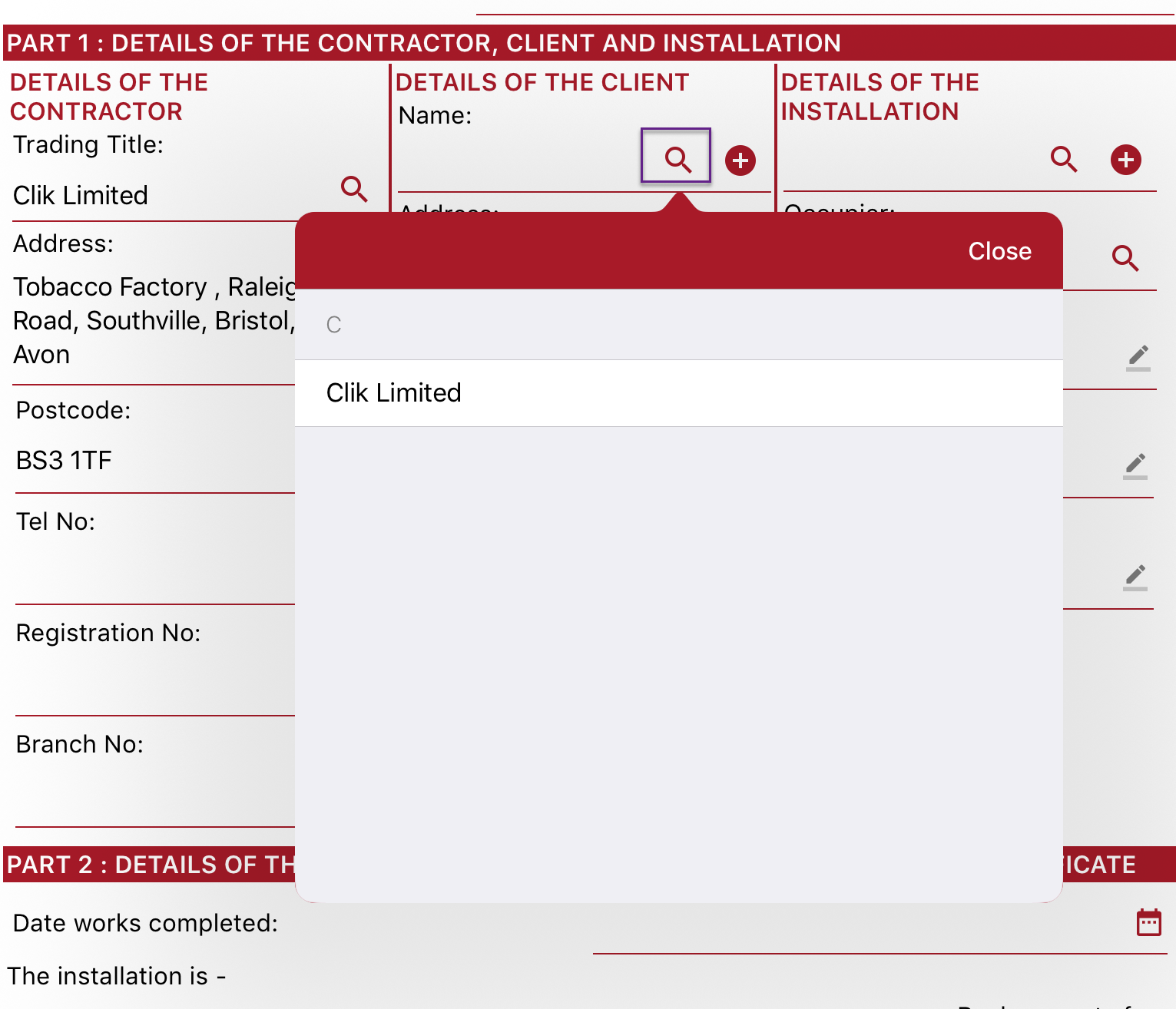
This will then bring up a list of available companies. Select the appropriate company and site address to populate the details into the cert.
New Company Address
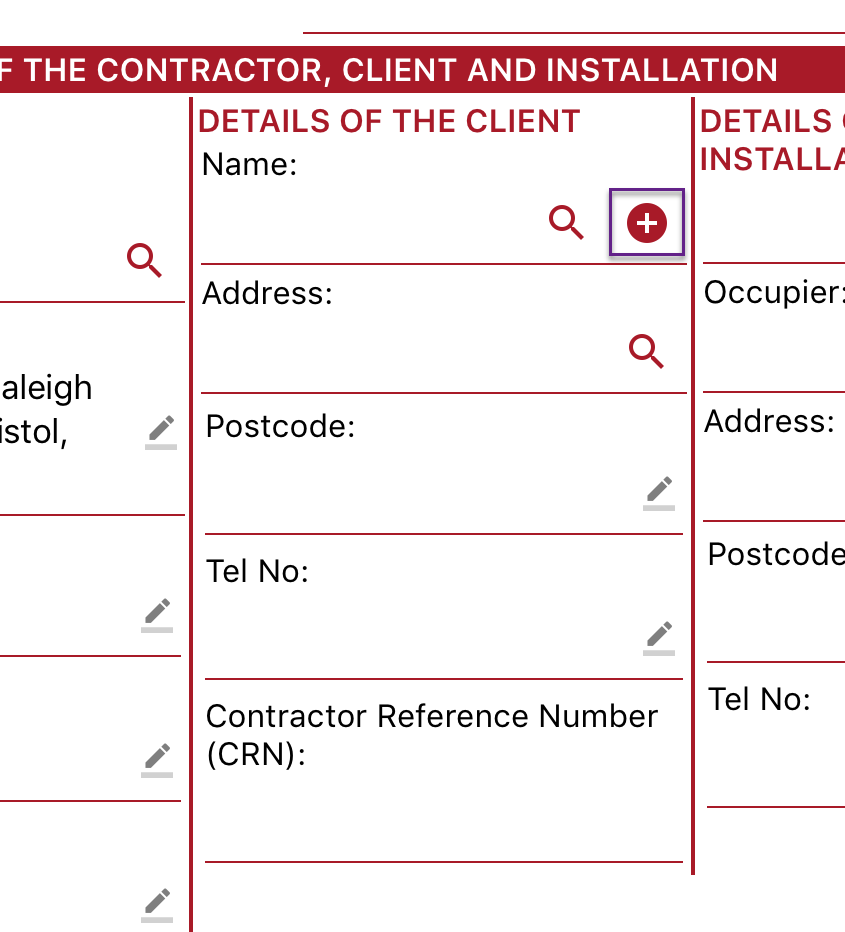
You can also create a new contact or company by selecting the plus icon.
This will then bring up the fields required to create the company or person.
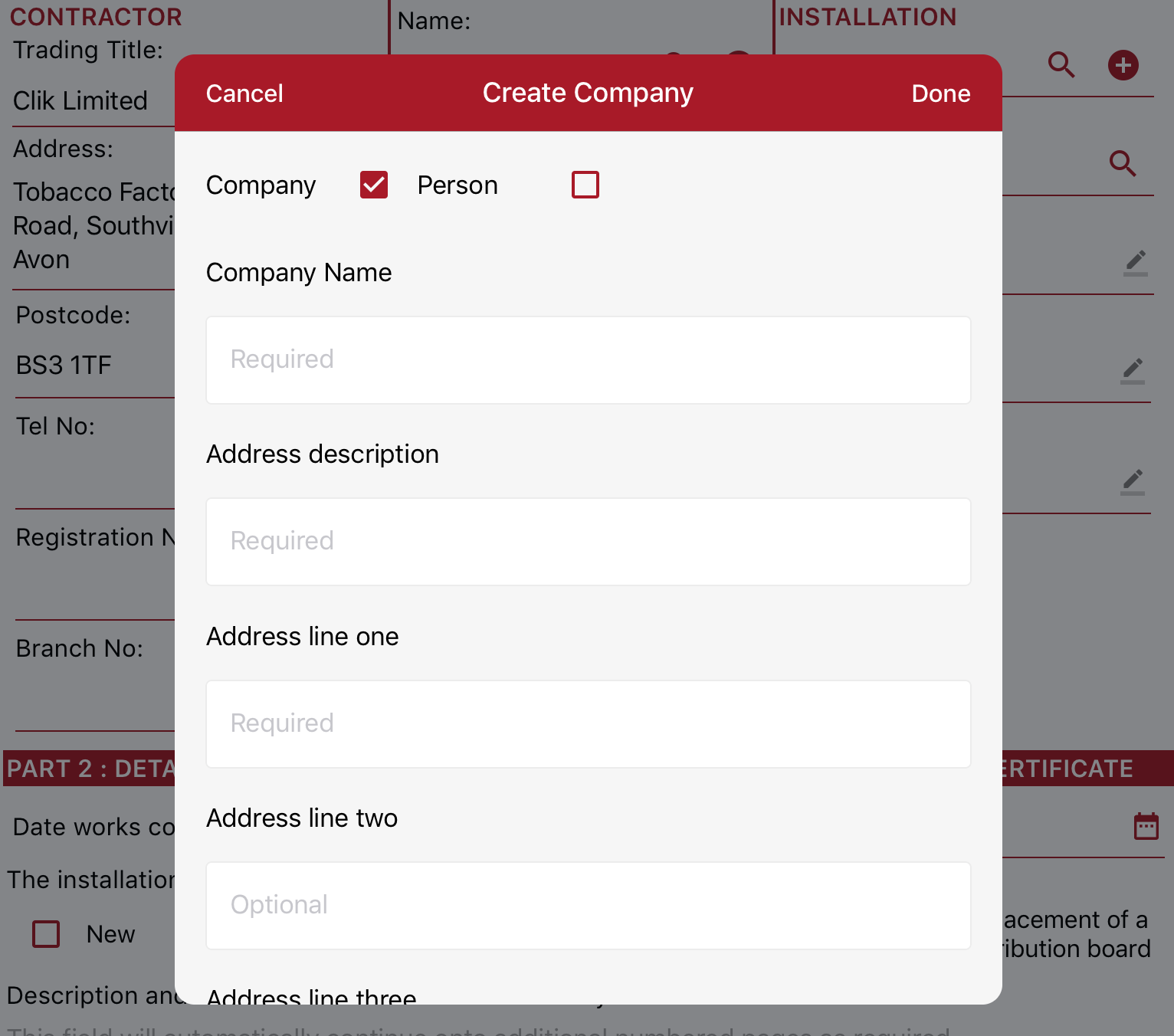
When completed, tap ‘Done’ to add it to the cert.
This company will then be added to the desktop address book once the cert is synced and merged. Find out more about syncing certs back to the desktop here.
Published: September 2019
Comments
0 comments
Please sign in to leave a comment.