
This article will explain how you can set up engineers as field users with your NICEIC Cert Software, this means you will be able to use the Clik Cert Electrical apps.
Note: You must be logged in as an admin account or a user that has appropriate privileges to create staff.
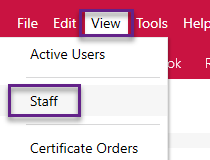
The first thing is to create the engineer in your database or select an existing engineer, do this by going to View > Staff in the office software.
If you need to give access to an existing user, please see this guide.
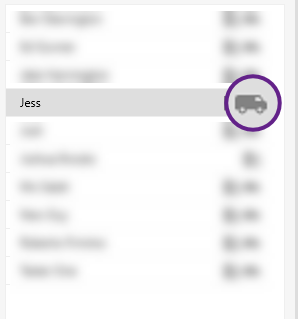
Here, you will be able to view all of your staff. Field users are indicated by the van icon in the staff list:
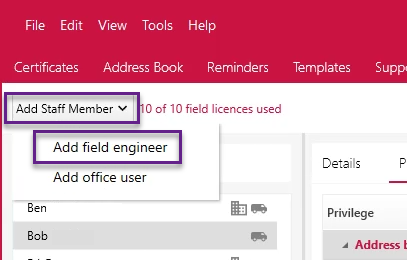
To create a new user, select Add Staff Member > Add Field Engineer.
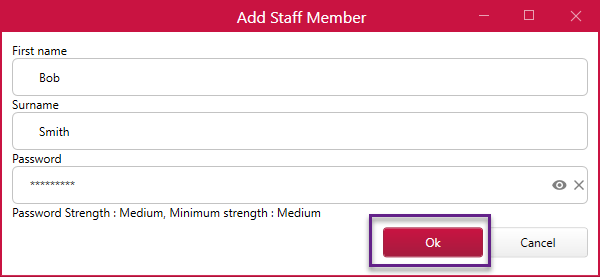
You will then be prompted to add the name and password for the new user. Fill in the details and click ‘Ok’.
The new user will then be created and will automatically be marked as an engineer in the ‘Details’ tab.
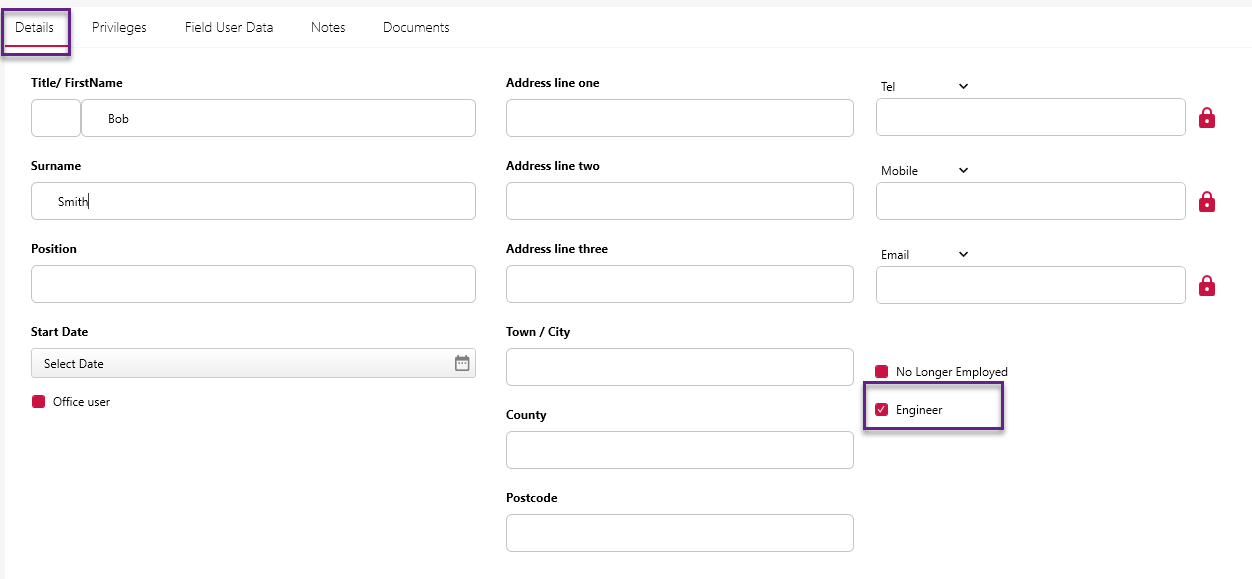
You can also set which certs, templates and addresses this user can access by navigating to the ‘Field User Data’ tab. See the articles below to see the full steps:
Sending Templates To Field Users
Sending Customer Addresses To Field Users
When all these details have been completed, click ‘Save’ to confirm any changes and sync the user details to the cloud.
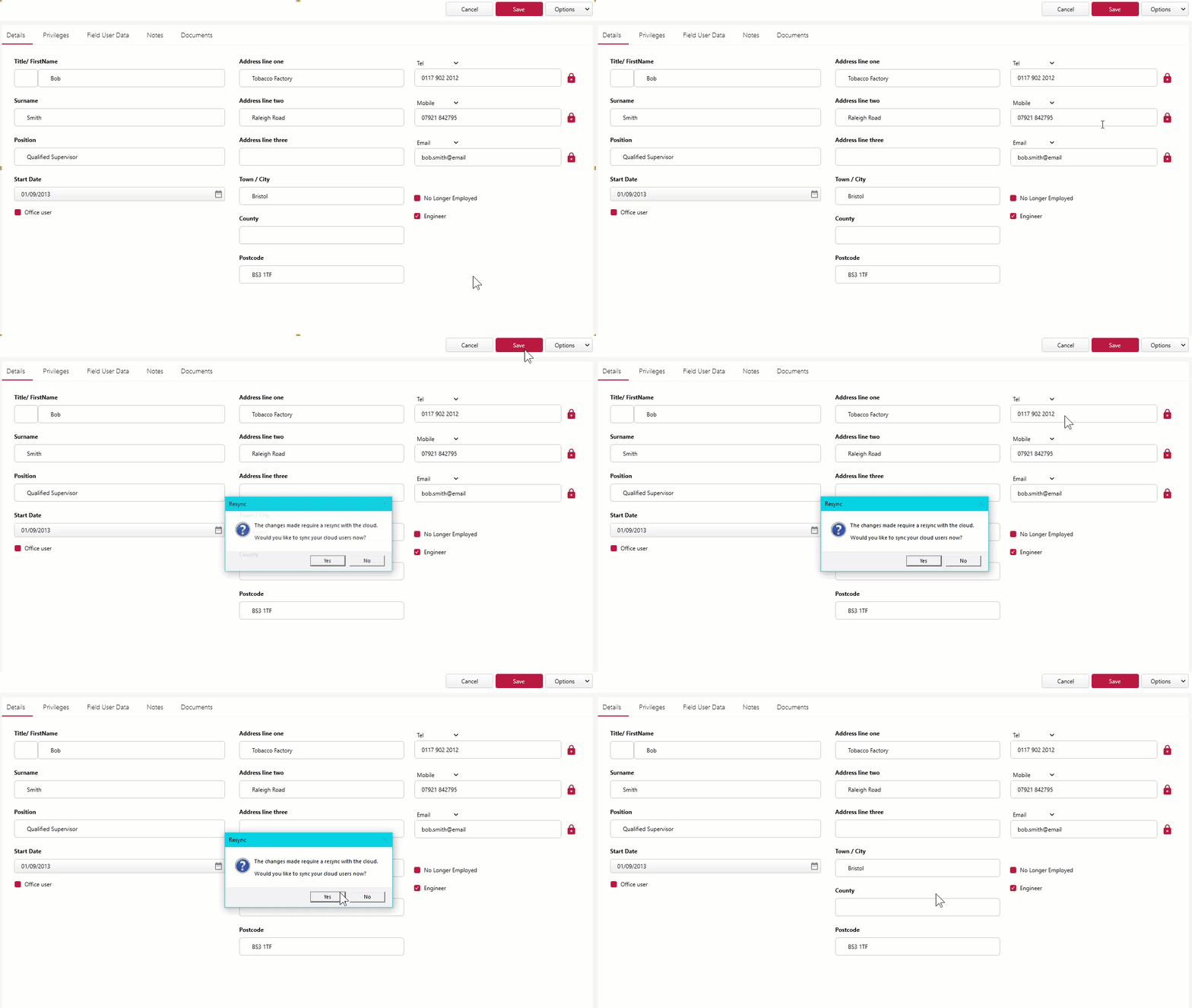
The pin code required for the user to log in will then appear at the top of the screen. You can also find steps on finding a new pin code here.

The engineer will now be able to log into the Clik Cert Electrical apps using the password and username, which is made from the first name and surname of the user.
This process was amended in update v1.0.46.2. Make sure your software is up-to-date to get the latest features and improvements.
Published: January 2019
Last Updated: April 2020
Comments
0 comments
Article is closed for comments.