
This article explains how you can create logins and set privileges for users that require access to the desktop NICEIC Cert Software.
To see how to set up field users, please see this guide.
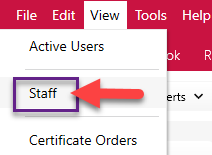
To set up a new user, go to View > Staff.
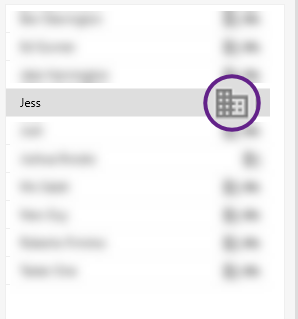
Here you will be able to view all your staff. Office users are indicated by the building icon in the staff list:
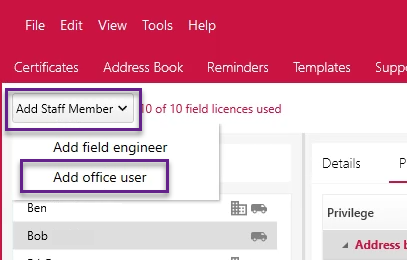
In the staff screen click ‘Add Staff Member’ and select ‘Add Office User’ from the drop-down.
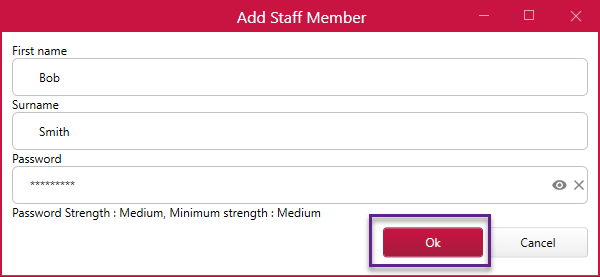
You will then be prompted to add the staff details, along with a password for that user.
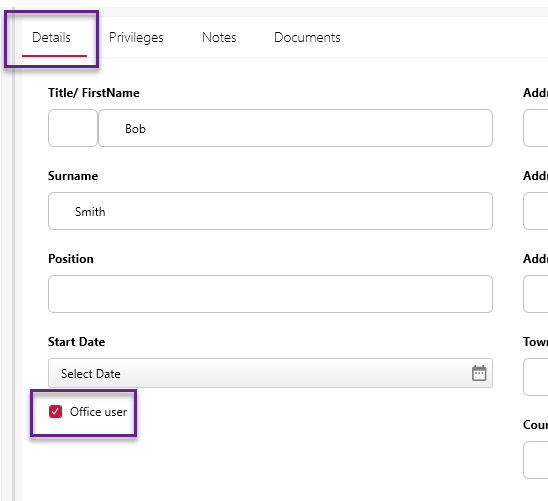
You can then add further details in the ‘Details’ tab. Tick on the ‘Office User’ box to allow the contact to be able to log into the desktop office mode.
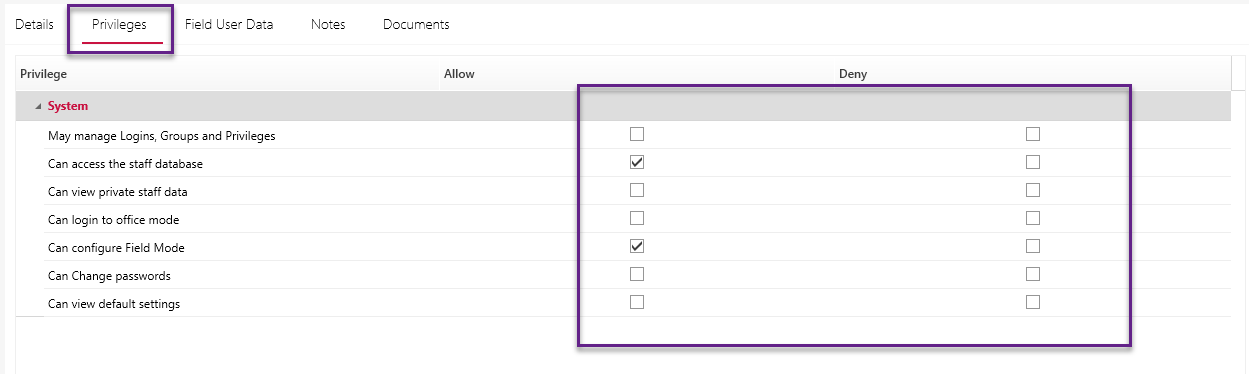
Then, go to the ‘Privileges’ tab to set what the user can access.
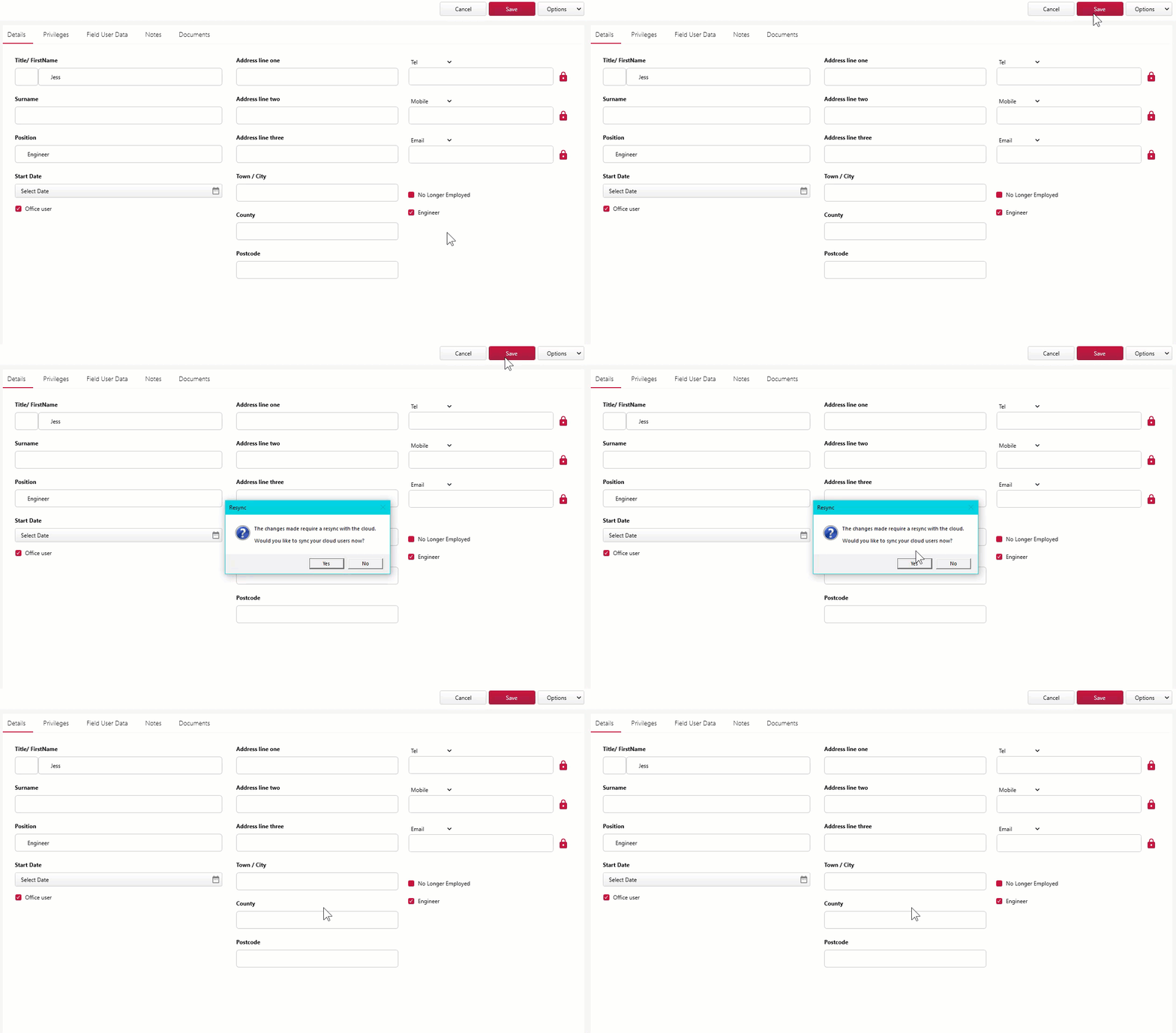
Click ‘Save’. You will then be prompted to perform a sync with the cloud to confirm any changes.
You will then be able to log into the office software with this user. Go to File > Login to switch users and select the new contact from the dropdown.
To set up a user for Field Mode, see this guide.
This process was amended in update v1.0.46.2. Make sure your software is up-to-date to get the latest features and improvements.
Published: November 2018
Last Updated: April 2020
Comments
0 comments
Article is closed for comments.