
How To Create Qualifications
Go to Modules > Manage Qualifications.
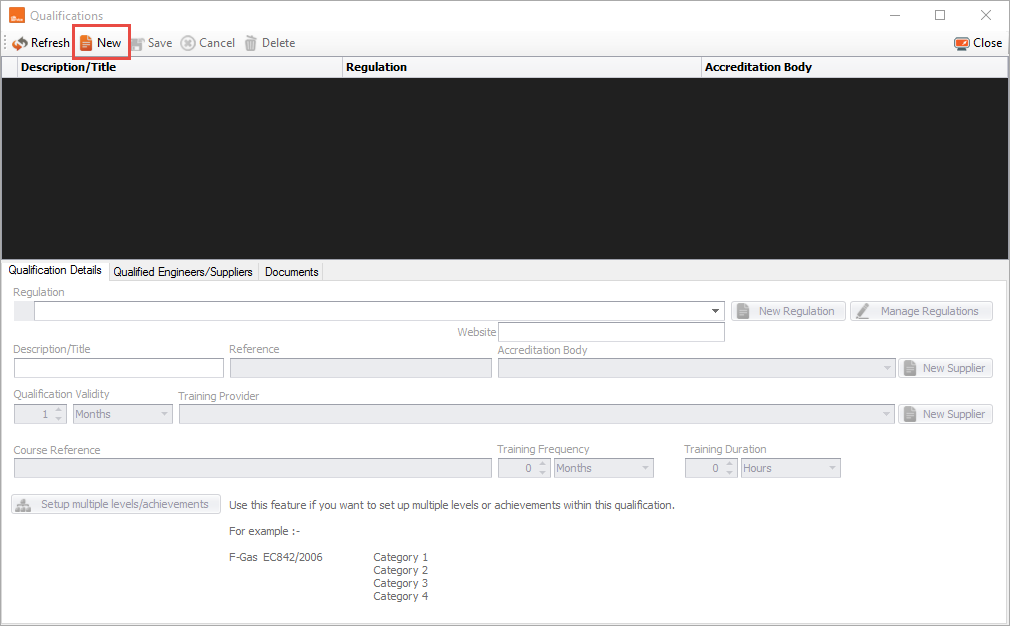
Once in the qualifications module click on the 'New' button, highlighted below.
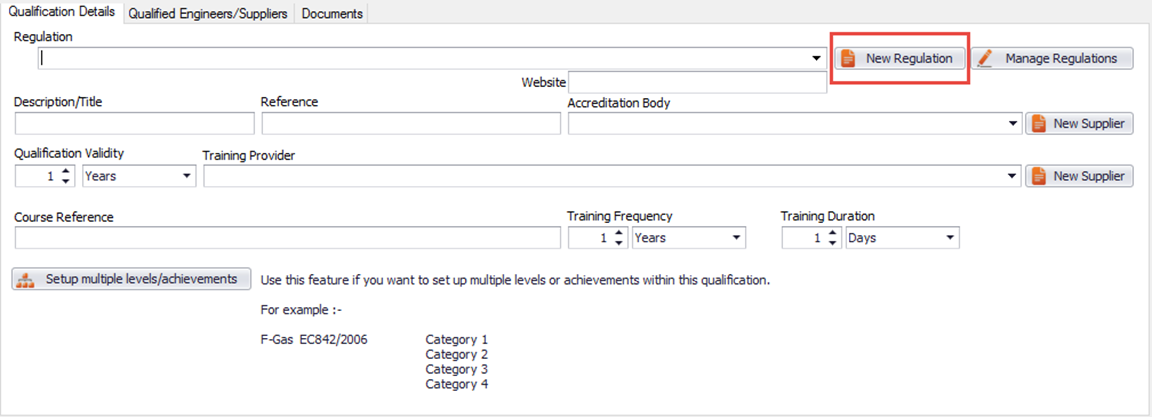
Now you may need to create a regulation. Regulations are the bodies that regulate the qualifications. So to create a regulation click the 'New regulation' button, highlighted below.
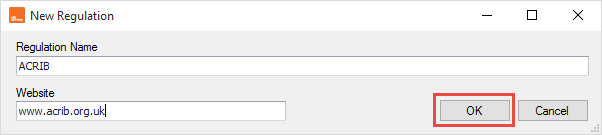
You should fill in the regulation name and website then click 'OK'.
Next, you may need to create the accreditation body to do this click 'New supplier'.
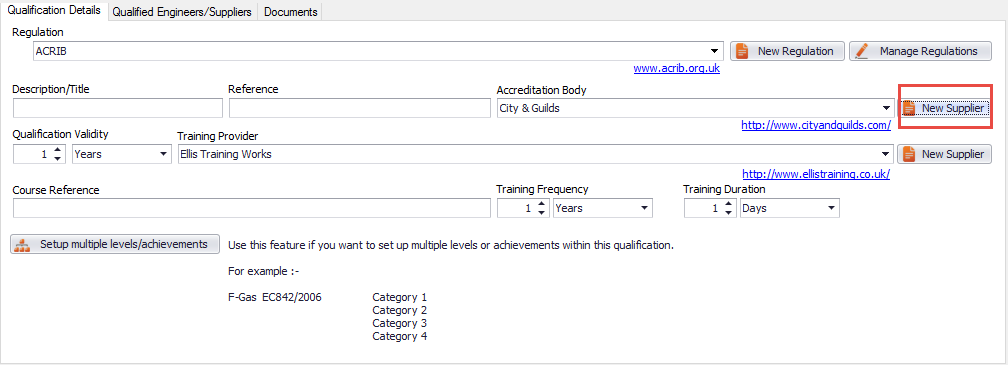
Once filled in like below click 'Save'.
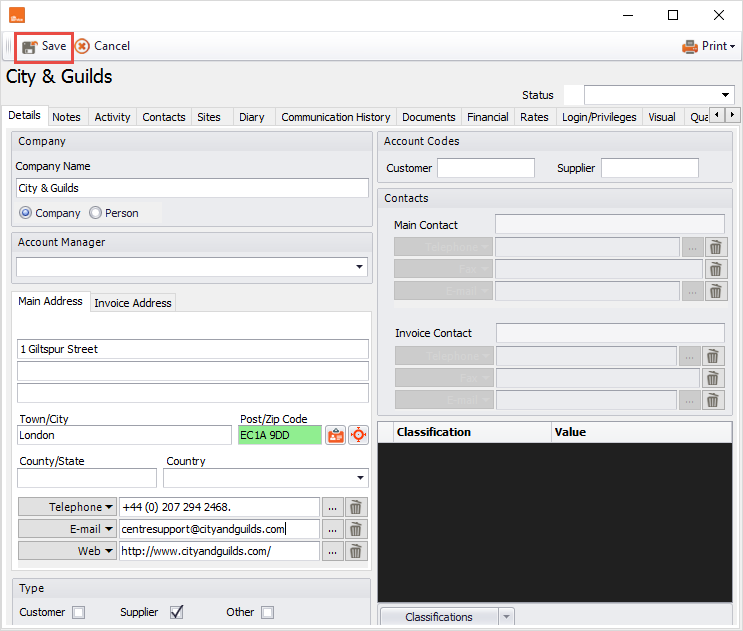
Now you can edit the training provider, by clicking the 'New supplier' button and fill in the details like above.
You can fill in the rest of the qualification details so it should look like below.
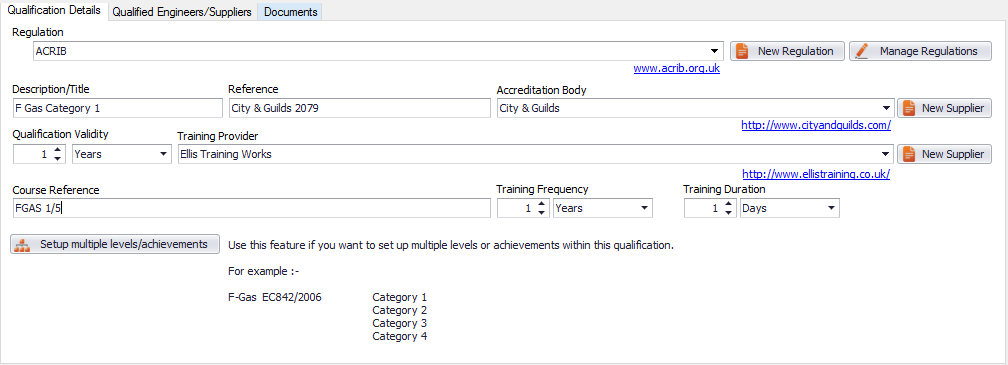
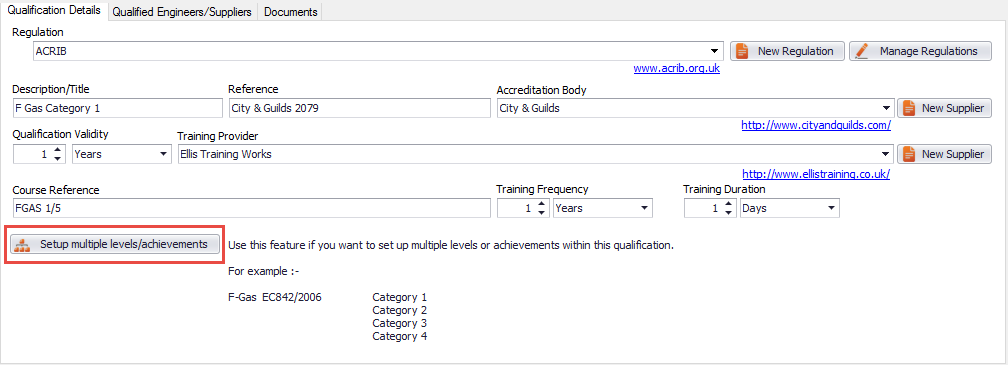
Now you can set up multiple levels/achievements by clicking on 'Setup multiple levels/achievements'.
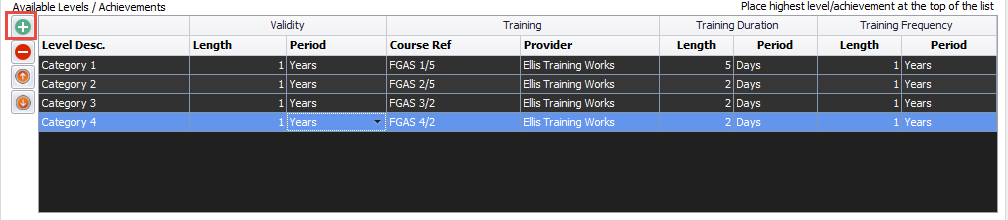
- Here you can then setup levels that make the whole qualification. To add a level click on the + sign.
Once you have finished creating the qualification click the 'Save' button.
Adding Already Qualified Engineers/Suppliers To A Qualification
This section will show you how to assign engineers or sub-contractors to the qualification.
First, go to Modules > Manage qualifications and select a qualification by highlighting it then click the 'Qualified engineers/supplier' tab, highlighted below.
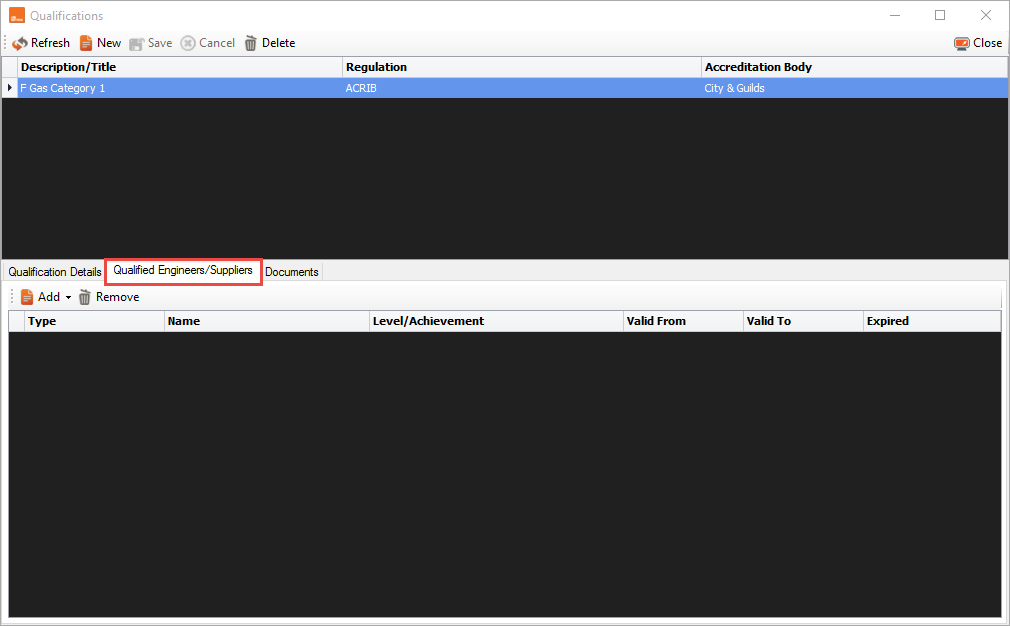
Next, click Add > Engineer.
You will then see the below screen. Select the engineer in the 'Qualified engineer' drop-down box.
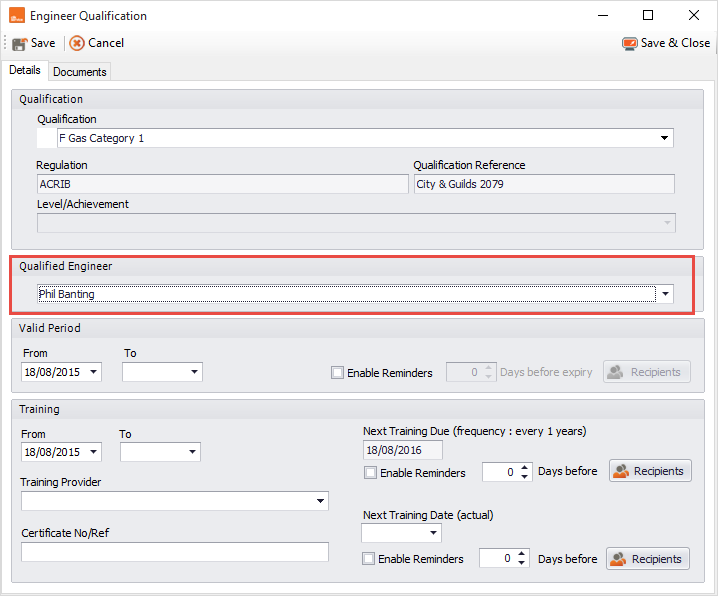
From here you can now fill in the relevant information like valid period, training dates, training provider and certificate no/ref.

Creating Reminders For Validation Of Qualifications, Next Training Due Dates & Next Training Actual Dates
This section will show you how to create reminders so you and your engineers will get reminded about re-training.
First, go to Modules > Manage qualification, select qualification and go to the tab 'Qualified engineers/suppliers'.
Next, double-click on the engineer you wish to set reminders for.
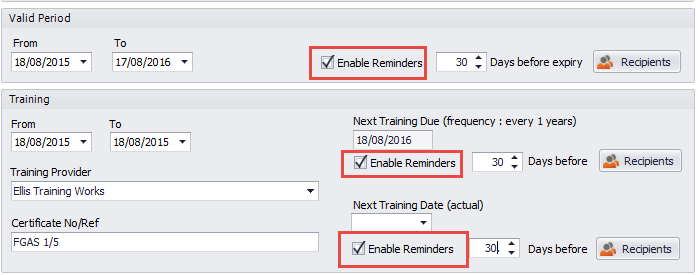
You can now enable reminders for valid periods, training due date and next training actual dates. To do this tick the box 'Enable reminders' and put the number of days before you want that reminder to pop up.
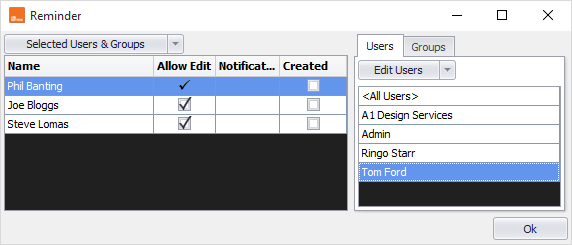
Now you need to add the recipients who receive the reminder. Click on 'Recipients' next to the reminders and choose the users or groups that need the reminder, then click 'OK'.
Comments
0 comments
Article is closed for comments.