
This article will show you how to set up email notifications for Clik Service.
Property change notifications allow automatic emails, texts or internal messages to be sent to the relevant people when a job, quote, PO or incident has changed.
For example, if a job is set to complete that change could send an email straight to the customer or when a quote has been accepted that could notify the account manager or the responsible contact.
To start, go to Settings > Settings > Communication > Property Change Notification and click 'Add', as highlighted below.

Select the property you want to set up a notification for and click 'Add'.
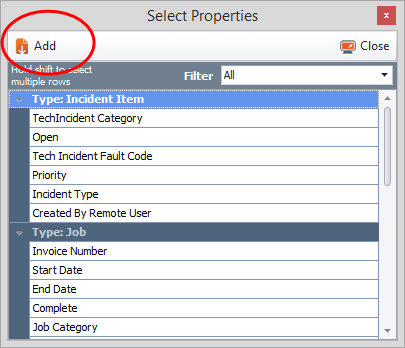
You will now see the type, property, and target headed columns. Click the ‘Target’ tick box, like below.

Now you need to create the action for when the property is completed in a job sheet.
Click 'Add' under 'Actions/Recipients'.
Then select 'Email' and click 'Add' in the property actions box.

Click on 'Configure', to configure who sees the change via email.
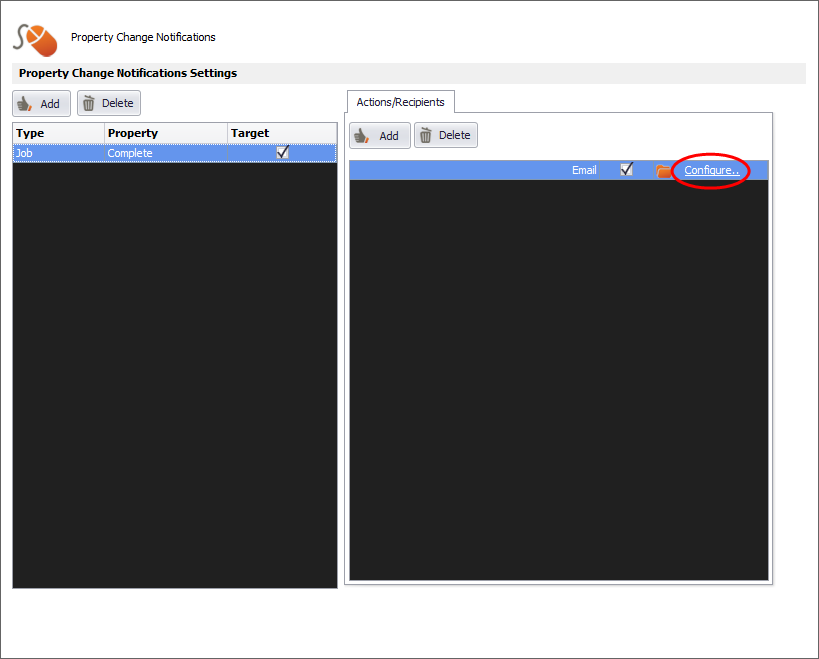
You can create the message those recipients receive when a job is complete and use tags by clicking on the 'Insert Tag' button.

Click 'OK' and you've just set up an email property change notification.
Comments
0 comments
Article is closed for comments.