
The commission system on Clik Service works on a user being set up as an account manager who can earn a percentage of each item added to an invoice. The user’s sales for the month can then be calculated automatically through the staff database.
You will need administration privileges with access to the staff database to setup and configure the commission system.
Staff Configuration
Click Settings > Staff to enter the staff database.

Tick the account manager box for each member of staff you want to calculate commission for.
Next, click Salary > New salary.

You don’t need to enter a 'Monthly/hourly rate', but you must enter the correct values for 'Commission starts at…' and 'Target'.
If you do not enter a 'Commission starts at…' value, then all sales will be subjected to commission calculations.
Click 'Done' and then 'Save' to complete the setup.
Repeat this procedure on all members of staff then finally click 'Save and close'.
How Commission Is Calculated
Tick the 'Commissioned' box under the financial tab of the relevant CRM entry.
Make sure the companies account manager is also set to the correct member of staff to calculate their commission.
When invoices are raised for the customer, each individual item can have a percent of commission calculated. If items are added to an invoice manually, using 'Add item', this has to be input manually each time as well.
If items are added from the products database, using 'Add item from products', then the commission value can be pre-defined.

The invoice also has a commissioned tick box, which will be ticked by default if the same flag is set in CRM. You can untick/tick this on a per invoice basis if required.
Reporting Commission
To run a report on monthly commission per individual or all users go to Settings > Staff > Commission in the tools menu on the top right of the screen.
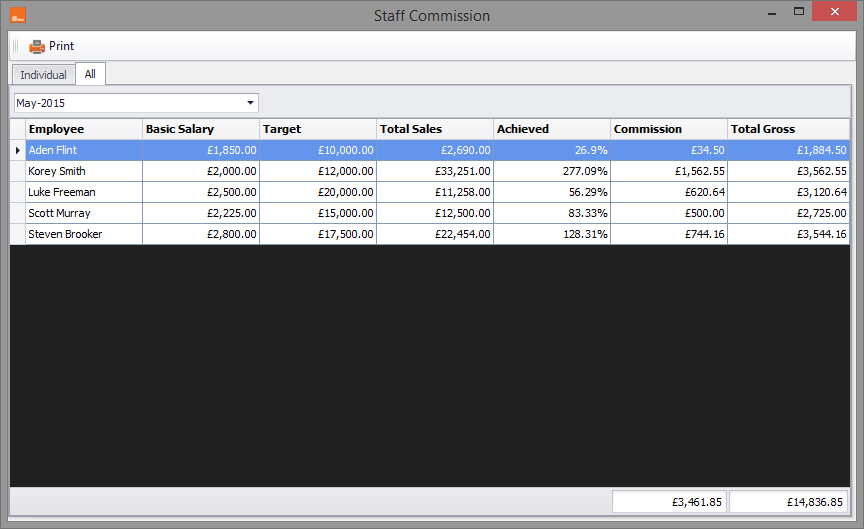
To print the commission report, click 'Print'.
December 2016
Comments
0 comments
Article is closed for comments.