
With the domestic reverse charge changes, you may have to create two new tax codes so you can post your invoices to Sage.
If you have the CIS module, the tax codes will already be set up in sage and will be set up in Clik Service. If you don’t have the CIS module, then you will need to set up the tax codes in Sage. Please contact Sage to help you with this.
If you have used these codes before you may need to change them in Clik Service to match. This article will show you how to change those tax codes.
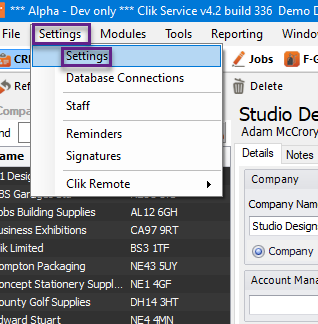
First, go to Settings > Settings.
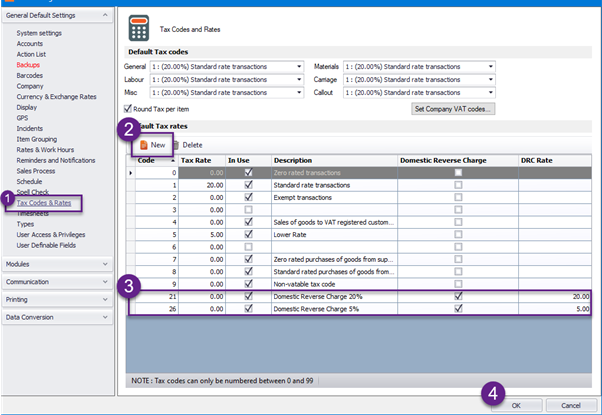
Once in settings, go to ‘Tax Codes & Rates’ and select ‘New’ twice to create two extra lines
It’s important that the tax code descriptions are set as “21 for 20% DRC” and “26 for 5% DRC“ and 'Domestic Reverse Charge’ is ticked with the DRC Rate column with the correct rates.
Click ‘Ok’, when the details are completed, as below:
Let’s have a look at how you can select those tax codes on an item within an invoice.
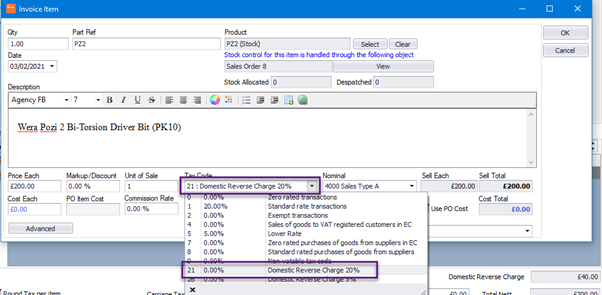
Once you’re happy with the invoice, you can post to Sage.
Remember, you may need to change your template in Clik Service to put the DRC charge in and clearly state it’s a domestic reverse charge invoice. Please go here to set up your templates.
This was added in update v4.335. Make sure to update your software to get all the latest updates and improvements.
Comments
0 comments
Please sign in to leave a comment.