
With the domestic reverse charge rate changes, you may have to sync two new tax codes so you can post your invoices to Xero. This article will show you how to change those tax codes.
Before you do this please read the article from Xero to enable the domestic reverse charge tax rates
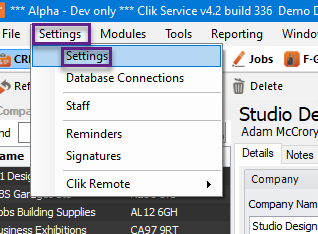
First, go to Settings > Settings.
Now go to ’Tax Codes & Rates’ and map tax codes 21 & 25 to the relevant codes in Xero.
Tick the 'Domestic Reverse Charge' tick box and put in the domestic reverse charge rate. See below to see how this will look.
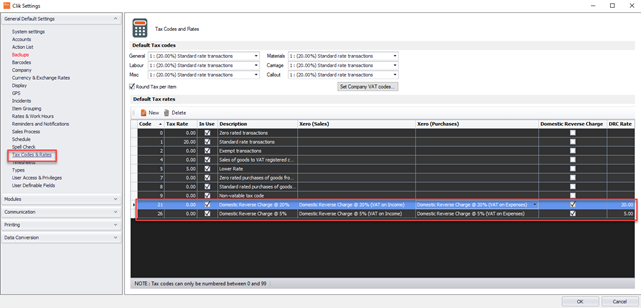
Click ‘Ok’ and that’s it. You can now post invoices and purchase orders or purchase invoices to Xero with the new tax code.
This was added in update v4.335. Make sure to update your software to get all the latest updates and improvements.
Comments
0 comments
Please sign in to leave a comment.