
There are two mains way to filter the engineer schedule in the Manager login and that's by selecting the engineers you require but also selecting the department you require.
Filtering By Individual Engineers
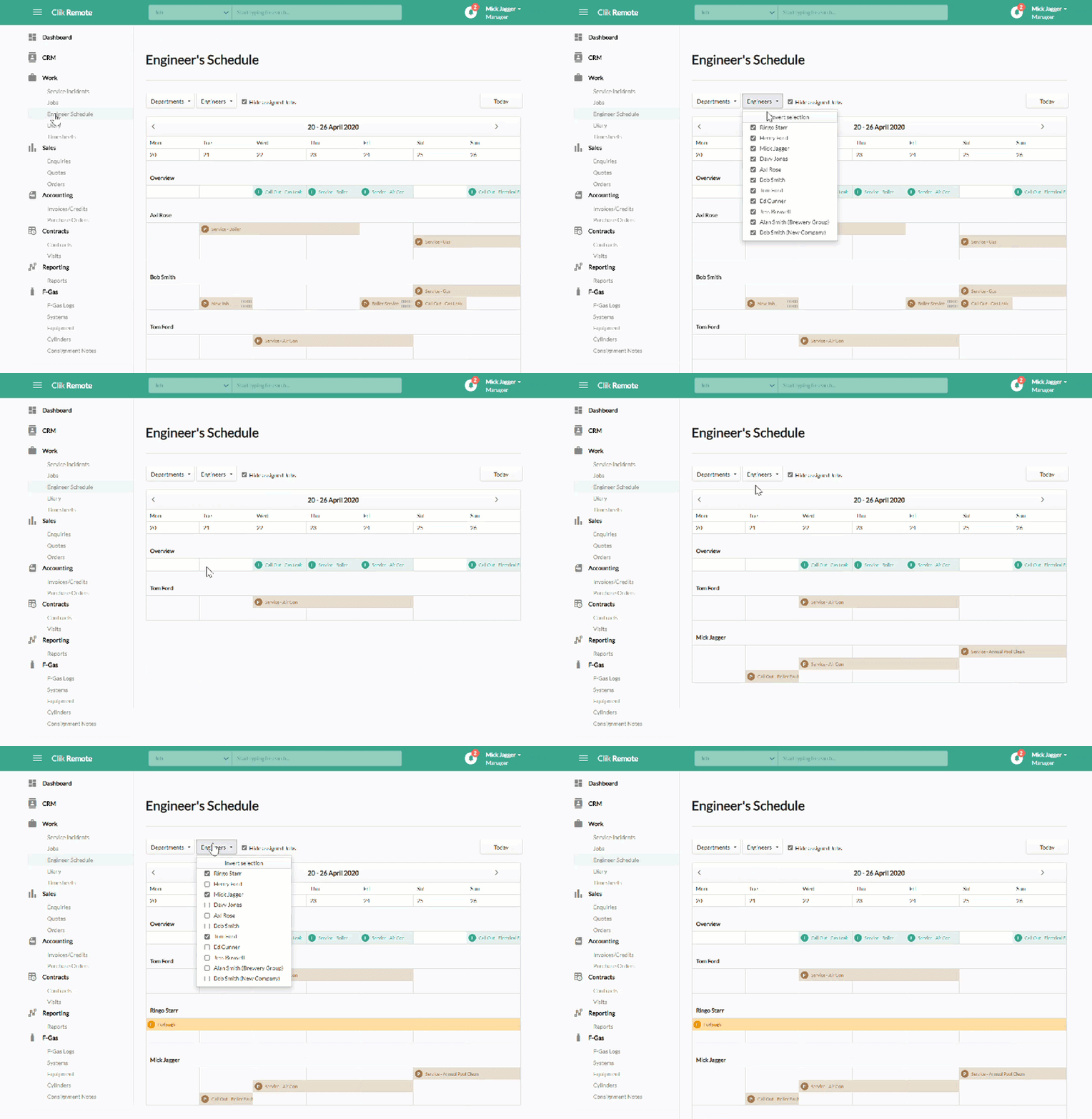
To do this, go to the engineers schedule in Clik Remote and select the engineers you require to see by selecting the ‘Engineer’ drop-down box, you can select ‘Invert Selection’ to clear all ticks or you can just untick the engineers you no longer need.
Filtering By Department
Before you can filter by department, you must make sure all engineers have had a department associated with them within the staff database. You can view our staff database video that will explain how to do this.
You will also need to make sure you have set up your staff departments by setting the types of departments you require. Read the setting up types article which will show you how to do this.
Now to filter by department go to the engineer schedule in Clik Remote and select the 'Department' drop-down box and tick the departments you want to see; this will then filter the engineers by department.
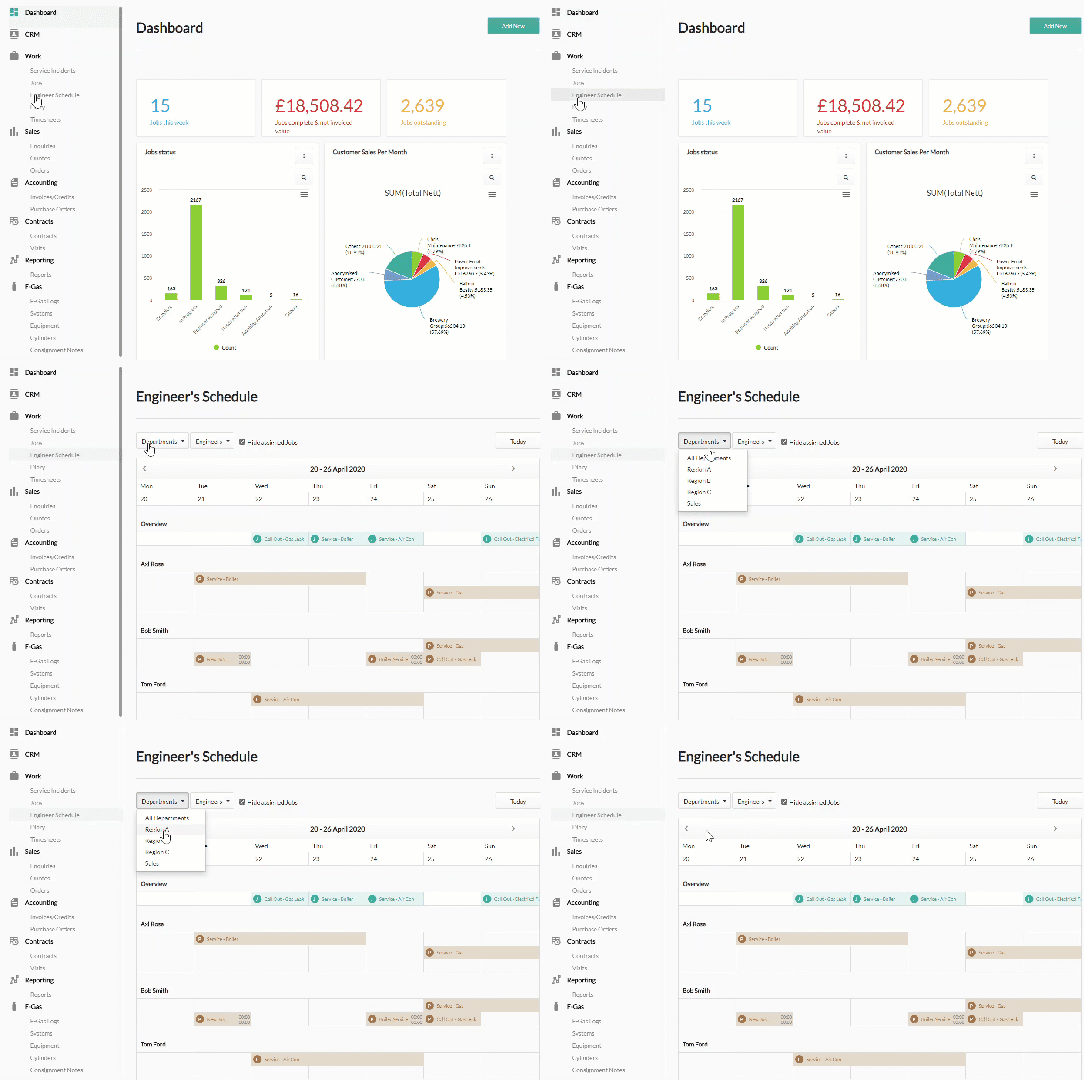
That’s it. You can now see the filtered list in the engineer schedule.
Published: May 2020
Comments
0 comments
Please sign in to leave a comment.