
This article will show you how to create a template for certificates that you will use again, this can be a great time saver, so you don’t have to fill the exact same information for a certificate.
First, you will first need to make sure your user has the correct privileges to complete this process. Follow this guide and ensure the 'Can Create Templates' privilege is allowed.
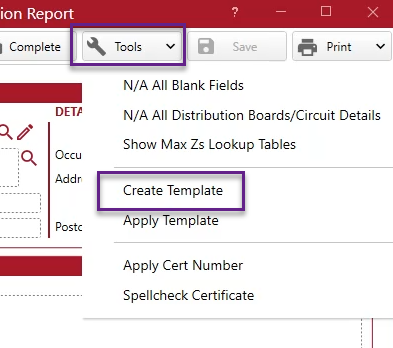
Go to a certificate you’ve filled in before. Once in the certificate go to Tools > Create Template.
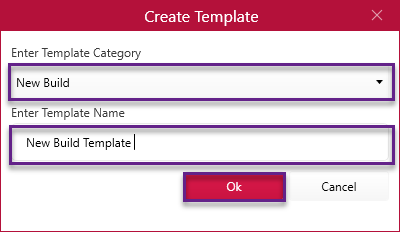
Now give the details of the template like below and click ‘OK’.
A notification box will then appear confirming that your template has been created. Press ‘Ok’.
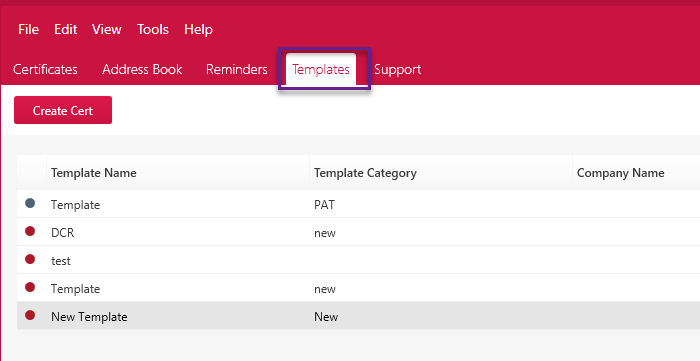
Now this template will now be in your template folder which can be found on the main screen under ‘Template’. Find out how you can apply this to a new cert by following this support article.
You can also create templates from completed certs by following the above steps.
That’s it for creating templates.
Published: January 2019
Last Updated: July 2020
Comments
0 comments
Article is closed for comments.