
You can manually post individual sales invoices to Sage by going to Tools > Post to accounts. However, you may have a lot of sales invoices to send across and this can be time-consuming. Therefore you may want to use the batch posting option.
If you haven't already linked Clik Service with Sage then check out this guide before continuing.
To batch post sales invoices to Sage click Modules > Invoicing > Batch post invoice.
The batch invoice post window will open and you'll see a list of all your sales invoices that haven't been posted to Sage for the current month.
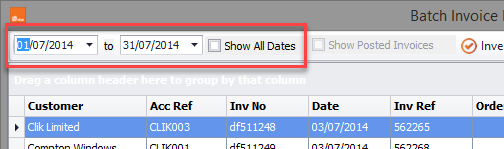
You can change the date range by either clicking on 'Show All Dates' or by adjusting the start and end dates.
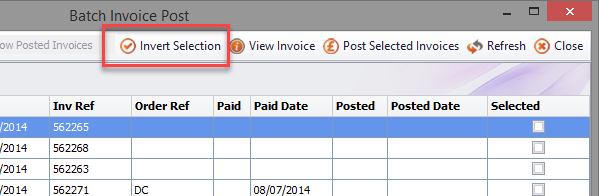
Click on 'Invert selection' to select all invoices in the list. Alternatively, you can just click on each invoice.
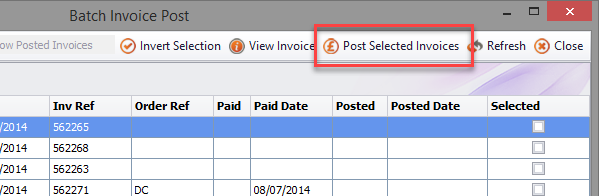
Once you are ready to post to Sage, click on 'Post Selected Invoices' and the process will begin.
You will then see the list of invoices that have been posted successfully. If any invoice has an incorrect nominal code, tax code or is zero rated it will be skipped.
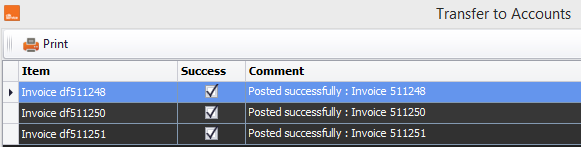
Once your invoices have been posted to Sage you can close the window by clicking 'Close' or you can print off a record of the batch post by clicking on 'Print'.
Comments
0 comments
Article is closed for comments.