
Available from the job sheets module this option allows you to pick multiple jobs, then let Google Maps calculate the best route.
You can only plan your route once the job sheets you want to select have all been filled in with the correct customer and site address details.
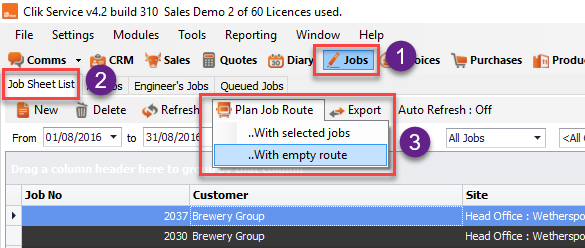
Go to Jobs > Job sheet list. You can pre-select the jobs you wish to plan a route for by holding down the Ctrl key and clicking each job, then click Plan Job Route > ...With selected jobs.
Or you can select them in the route planner window by choosing Plan Job Route > ...With empty route.
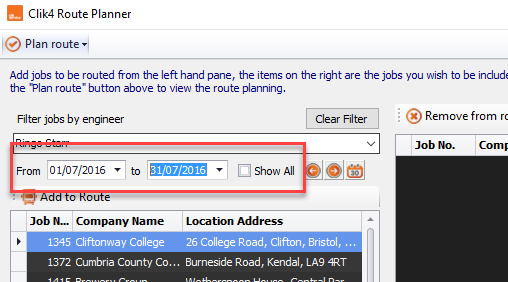
In the route planner window, you can filter the job sheet list by engineer and then date range.
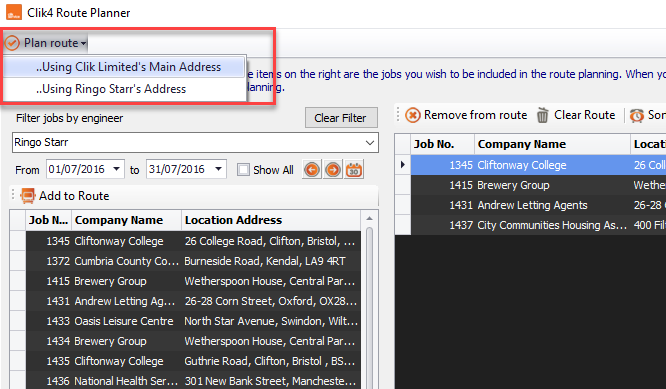
To add jobs to the route double-click on the required job from the left-hand list. As you double-click on them they will be added to the route list on the right-hand side.
Once you have added all the jobs you want, click 'Plan Route' in the top left of the window, and choose whether to start from your main address or the chosen engineers address.
The route planning window will open, showing all your chosen jobs locations pinned to a map with the quickest and shortest route between them highlighted in red.
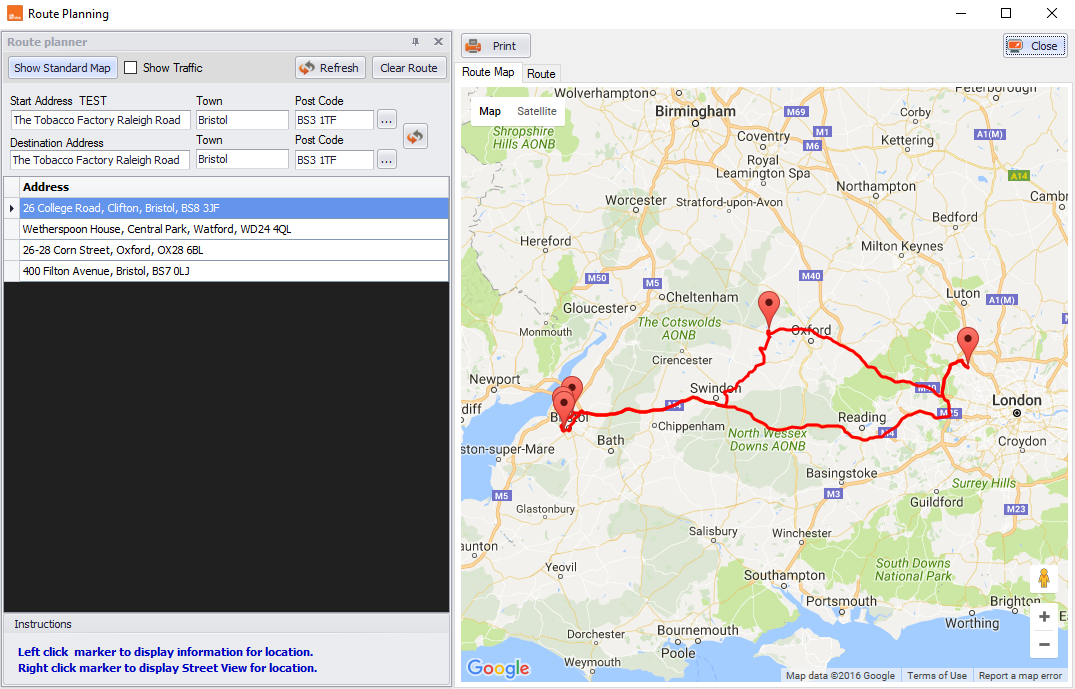
You can also see traffic information on the route map, such as congestion, by ticking 'Show traffic'.
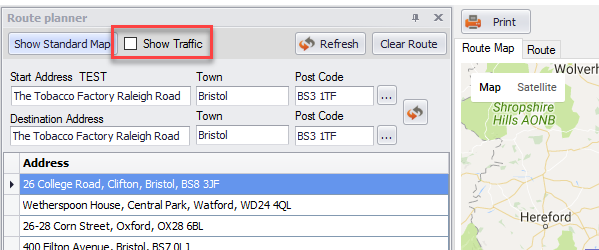
Select the 'Route' tab above the map to see the directions.
Google Maps will automatically work out the best order for these jobs from travel time and minimum mileage.
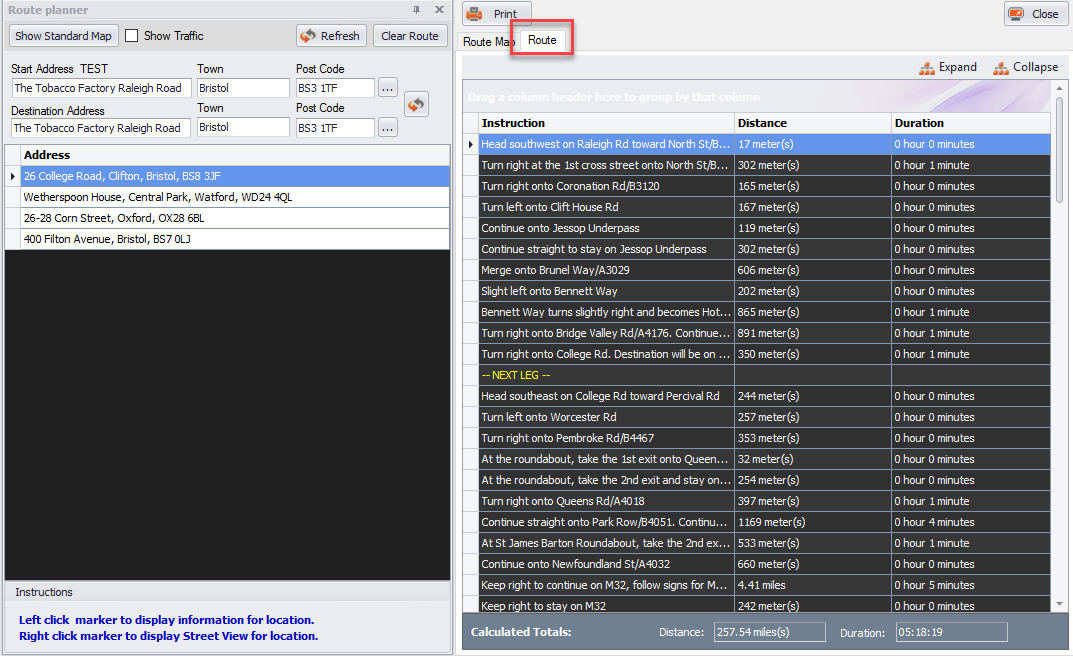
Now your route can be printed or sent to your engineer to go off on their travels with.
Comments
0 comments
Article is closed for comments.