
Open a job, swipe out the menu from the right side of the screen and choose 'attach image to job'.
You’ll see a screen which says "no photos" in large letters. This simply means that no photos are currently attached to the job.
Click on the camera icon at the top of this screen and you can either choose 'take photo' - which will open your camera.
Or you can select 'choose existing photo' - which will let you choose a photo already saved to your device.

Once you've taken or chosen your photo you can enter a description of the image at this point.
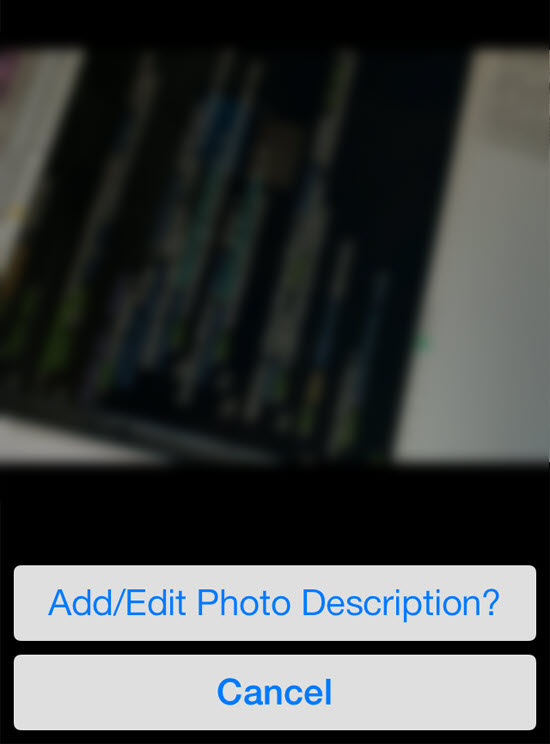
If you wish to enter a description at a later time then you can by tapping and holding down on a photo, then select 'add/edit photo description' from the menu.
If you wish to delete an image then tap on it and hold it down, then select 'delete' from the menu.
Then a copy of your photo will be added to your database in Clik.
Comments
0 comments
Article is closed for comments.