
It’s recommended that all other users avoid using Clik during a stock take, as you may end up with incorrect stock values/variance should anyone add products whilst a stock take is occurring.
You can access the stock take tool by going to 'Modules' in the top menu of the program and then select Stock-take > Stock-take from the drop-down menu.
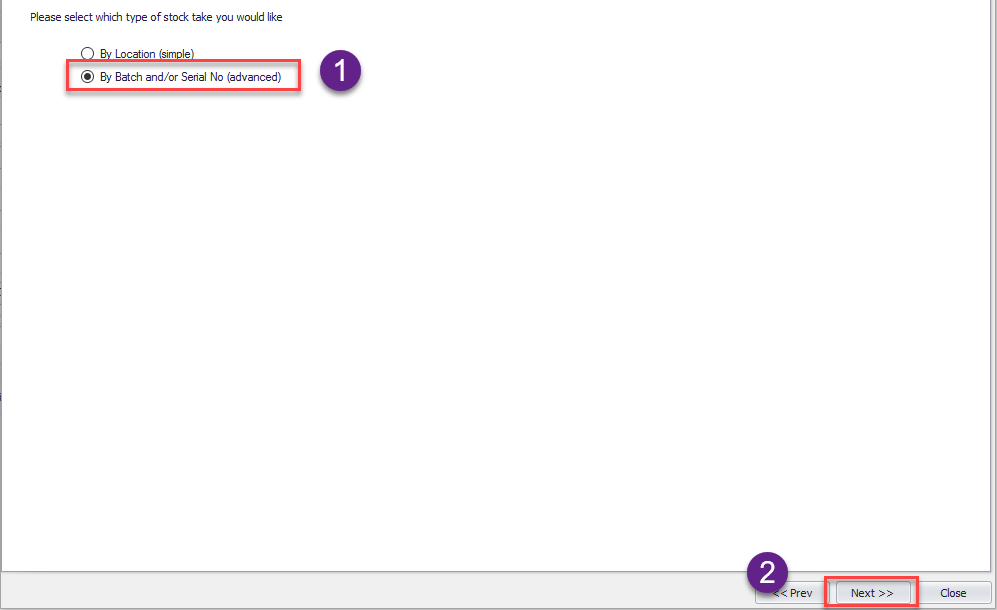
This will open the stock take window, like below, with two options. 'By Location (simple) ' or 'By Batch and/or Serial No (advanced)'. These have been explained in more detail below.
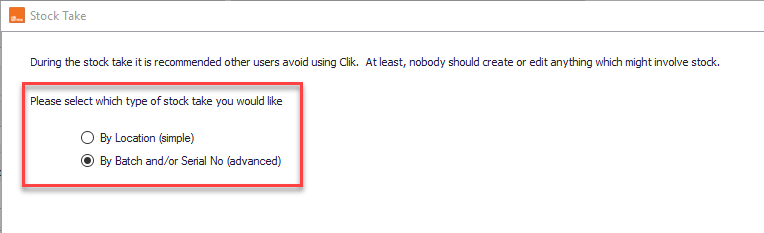
Option 1: By Location (Simple)
The simple stock-take function records stock values by individual location.
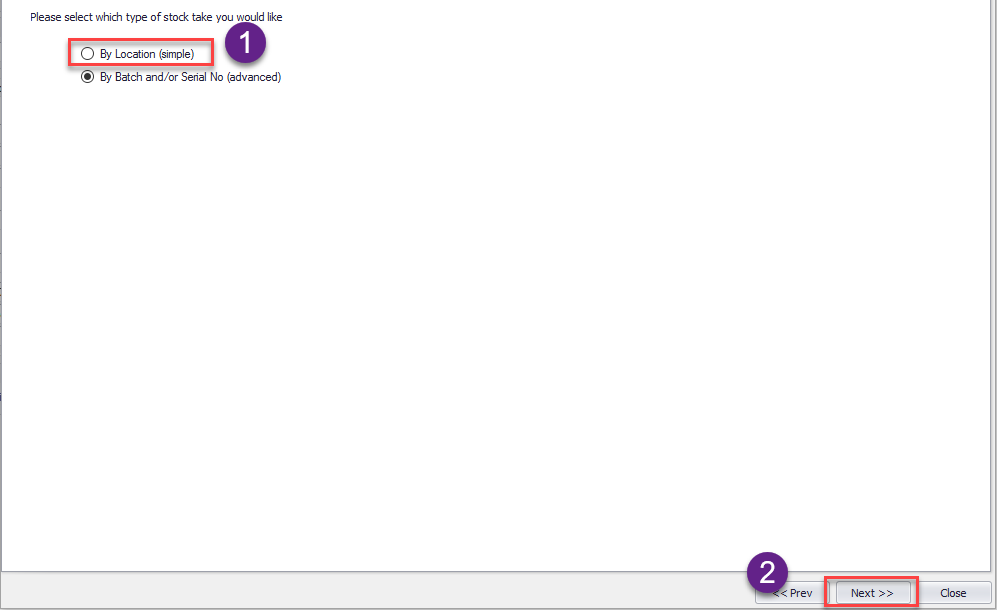
To start this stock-take ensure that you have selected 'By Location (simple)' and click 'Next' at the bottom of the window.
All the products in the database marked as stock items will now load in a list with the available and physical quantities.
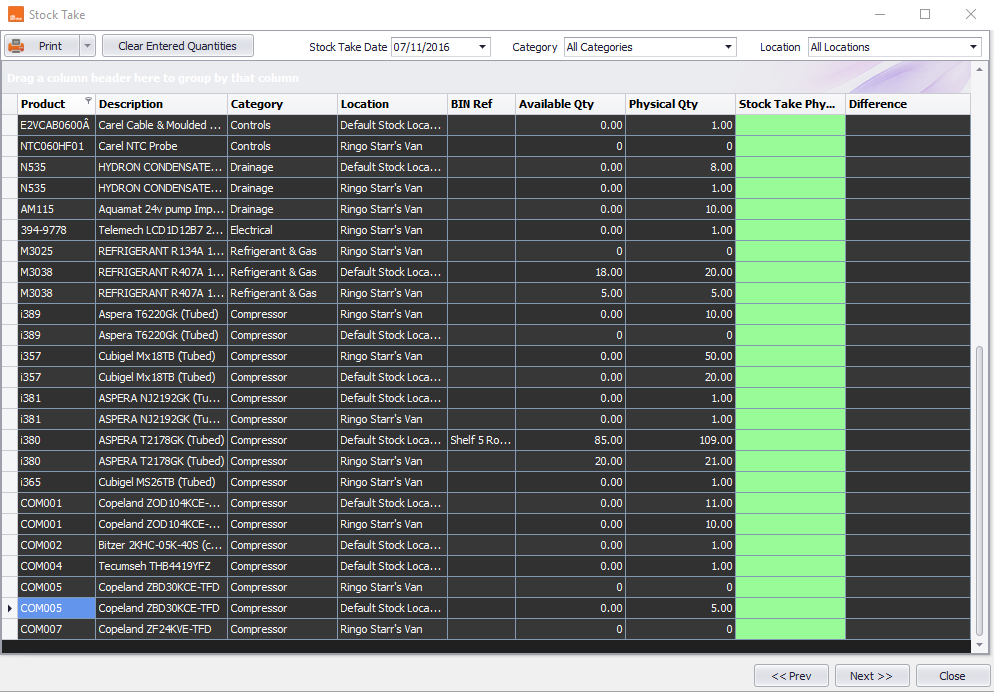
NOTE: Physical stock means the actual amount held in stock as opposed to available which shows the value not already allocated to a job/invoice on the system.
You can choose to narrow the stock take down to an individual category or location by using the drop-down menus at the top of the stock take window.
The 'Clear entered quantities' button will reset all stock to 0.

You can print stock take sheet selection or all by clicking on the arrow next to the 'Print' button, with the estimated values and space to fill in the actual quantity.
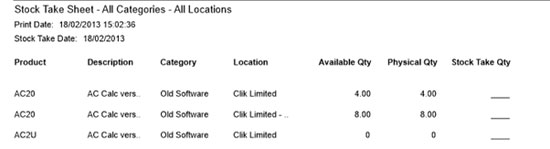
Once you have completed the stock take, all values can be inserted into the highlighted green column.
Any difference in values is detailed in the far right column.
Once you are happy all values are correct, click the 'Next' button at the bottom of the window and you’ll be warned that proceeding will update stock values.
Click 'Yes', and the stock take is completed and all values are applied.
You can print out a stock-take result sheet that will detail all variances, by clicking on 'Print'.

Click on 'Close', to finish the stock-take procedure.
Option 2: Stock Take By Batch And/Or Serial No (Advanced)
The advanced stock take function allows you to do the same as the simple option but it gives you the additional ability to record stock values by batch and/or serial number.
The key difference between this and the simple stock take option is that items booked in under individual batches or serial numbers will show as a separate entry on the stock take list. It will therefore not be uncommon to see the same item listed multiple times.
To start the stock-take ensure you have selected 'By Batch and/or Serial No (advanced)' and click 'Next' at the bottom of the window.
All the products in the database marked as stock items will now load in a list with the currently available and physical quantities. Physical stock means the actual amount held in stock as opposed to available which shows the value not already allocated to a job/invoice on the system.
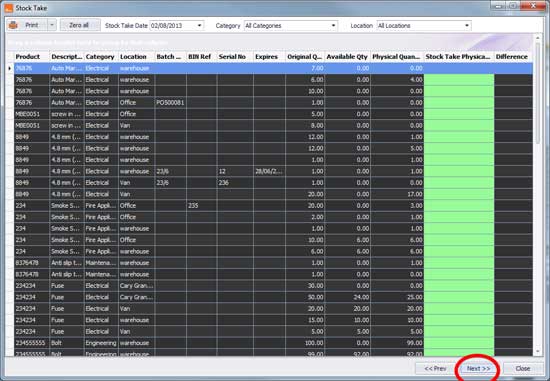
You can choose to narrow the stock take down to an individual category or location by using the drop-down menus at the top of the stock take window.
The 'Clear entered quantities' button will reset all stock to 0.

You can print stock take sheet selection or all by clicking on the arrow next to the 'Print' button, with the estimated values and space to fill in the actual quantity.

Once you have carried out the stock take, the values can be inserted into the green stock take column. Any difference in values is detailed in the far right column.
Once you are happy all values are correct click 'Next' at the bottom of the screen and you’ll be warned that proceeding will update stock values.
Once you click 'Yes', the stock take is completed and all values are applied.

You can print out a stock-take result sheet which will detail all variances. Click 'Close' to finish the stock take procedure.
Stock Take History
Each time a stock take is carried out using the program its details are stored for historic reference.
You can access the details of any previous stock-take by going to the 'Modules' menu at the top and selecting Stock-take > Stock-take history.
The stock-take window loads each stock take, click on the + icon on the far left to expand and see stock takes in further detail.
Comments
0 comments
Article is closed for comments.